Mini app step by step guide
Mini apps are lightweight applications that run inside Luffa. The main development language of mini apps is JavaScript.
Getting started
1. Download Luffa on Your Phone
Download the Luffa app on your phone — available on iOS and Android. (add links for download)
2. Get your invite code
Before registering, message the Luffa support team in the app to request your hackathon invite code. You'll need this to complete registration.
3. Register
Create your account at super.luffa.im/superbox/login
After registration, navigate to the allocated mini app where you will use the ID and Name.
4. Download the IDE
Download Luffa Cloud-Devtools from the console after logging in.
5. Find your mini program
In the list, find the mini program allocated to your team and use it.
6. Open the IDE
Create a new project, select your AppID from the dropdown (no manual input needed), it pulls directly from the console
Web Console
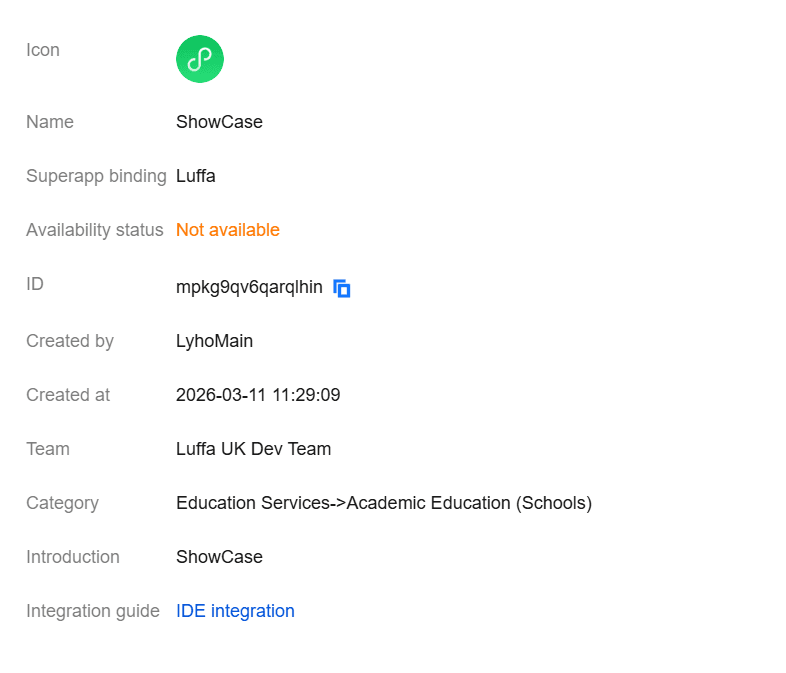
IDE
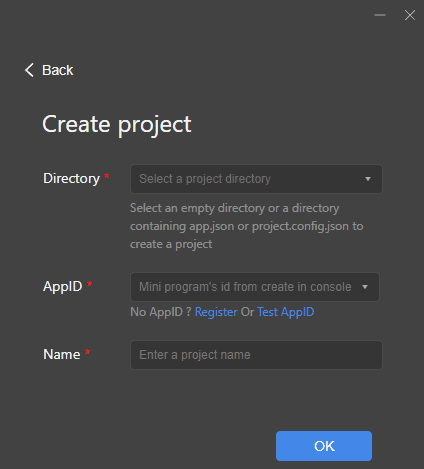
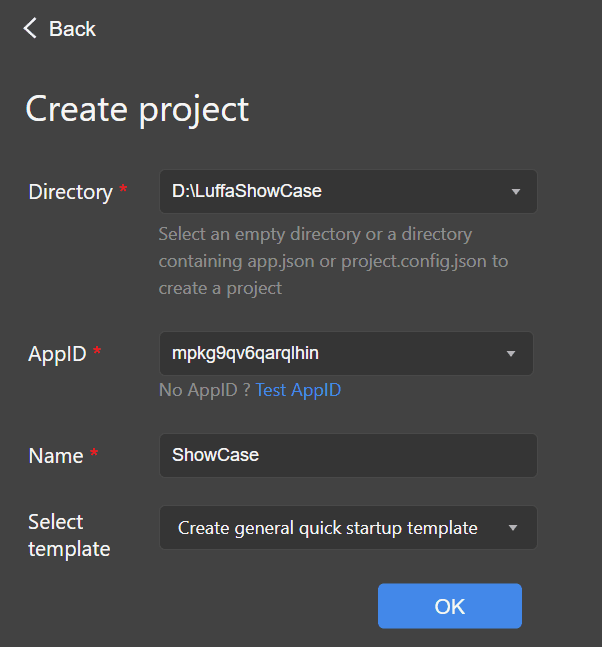
Copy ID of project and paste it as AppID, same with name. DON'T use this one is just an example
In this example should look like this:
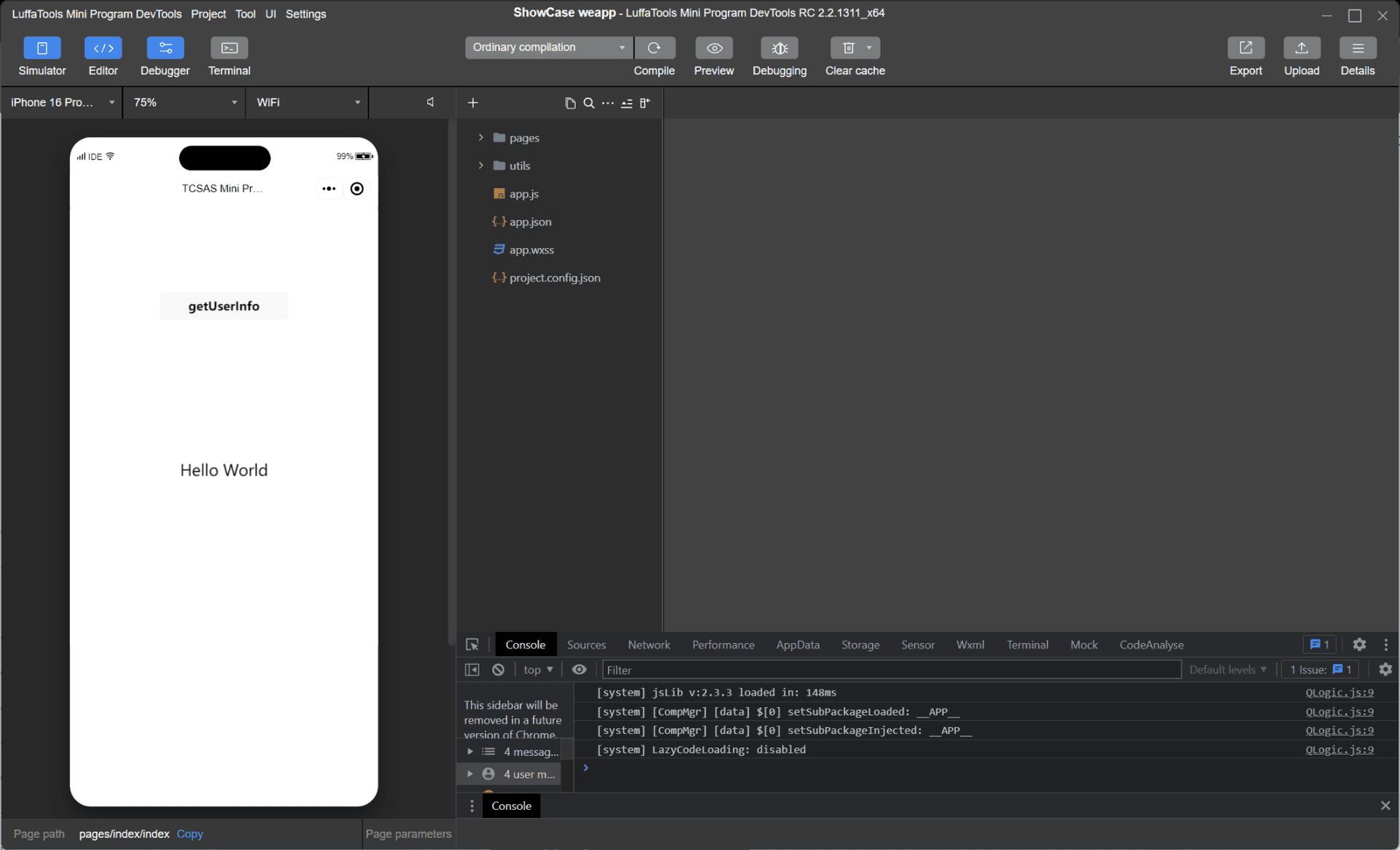
After it you will see this:
7. Write Your Code Elsewhere
The IDE is for testing and deploying only — do not write your code inside it.
8. Open the Project Folder in Your Preferred Editor
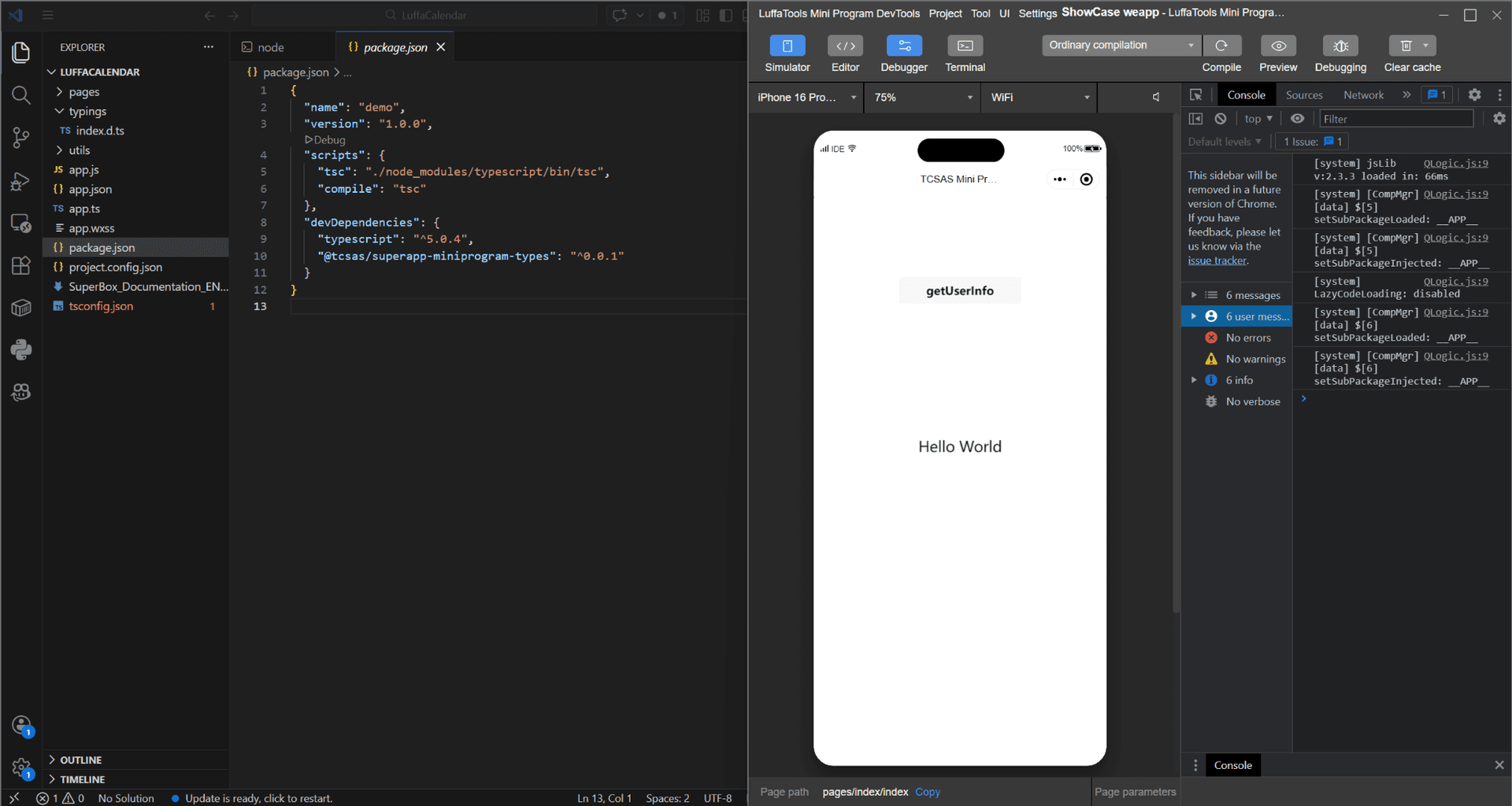
Open the same project folder in VS Code, Cursor, or any editor you prefer and write your code there.
Suggested set up for development:
9. Testing Your Mini App
There are three ways to test:
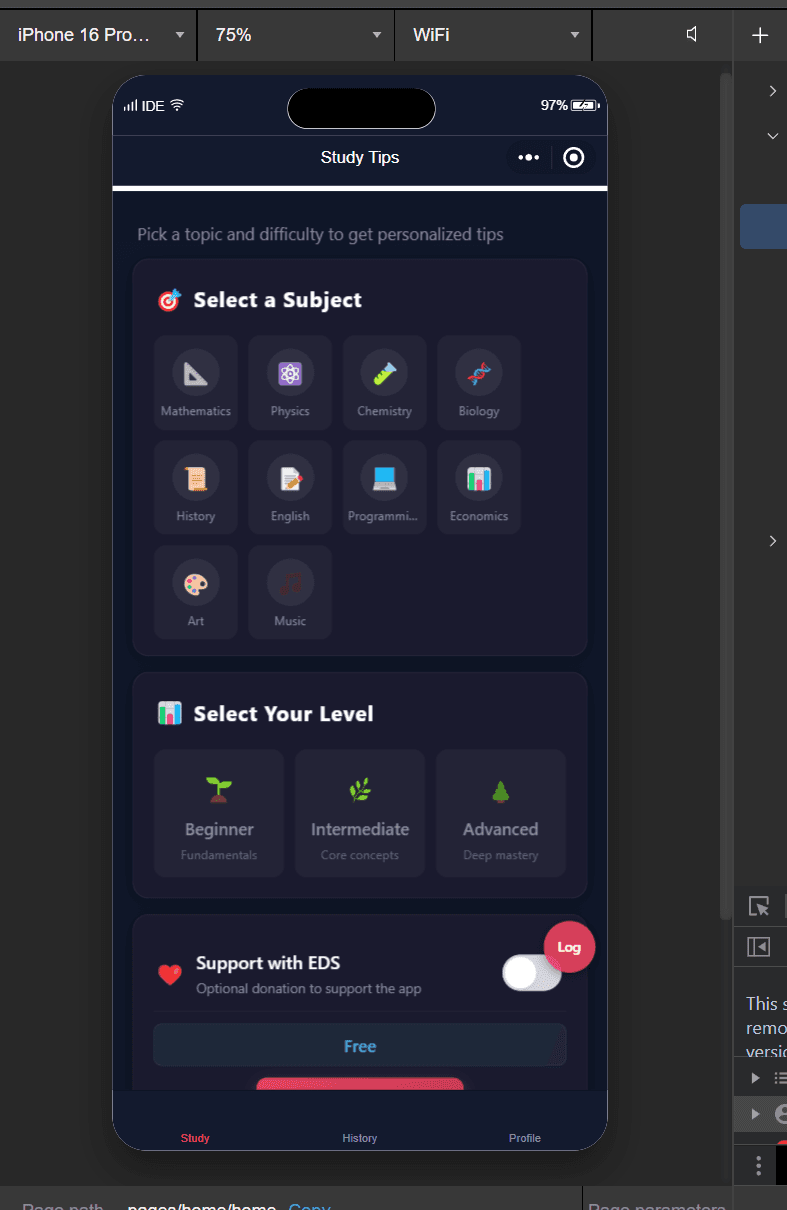
Simulation
— runs inside the IDE. Good for basic UI and layout testing, but key features like wallet connect and transactions cannot be tested here.
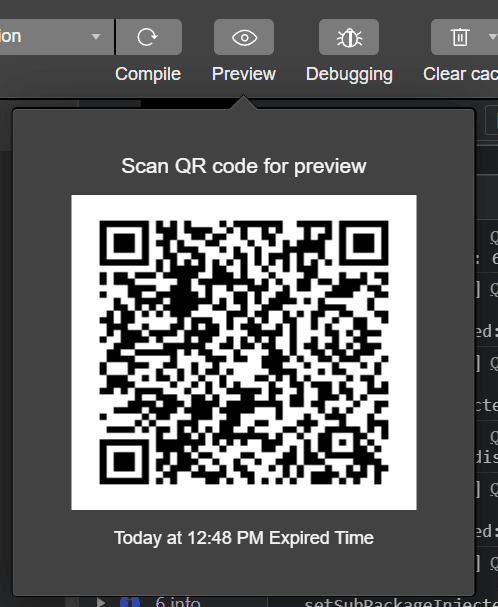
Preview
— runs on a real device via QR code scan. Tests the actual app experience end to end. Scan this code using Luffa app on your phone.
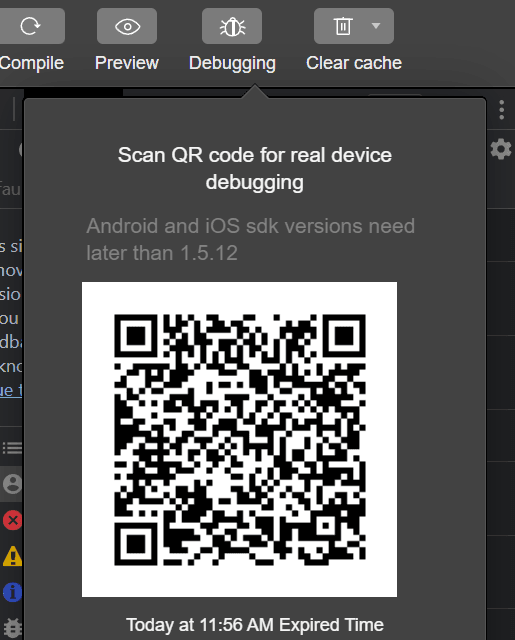
Debugging
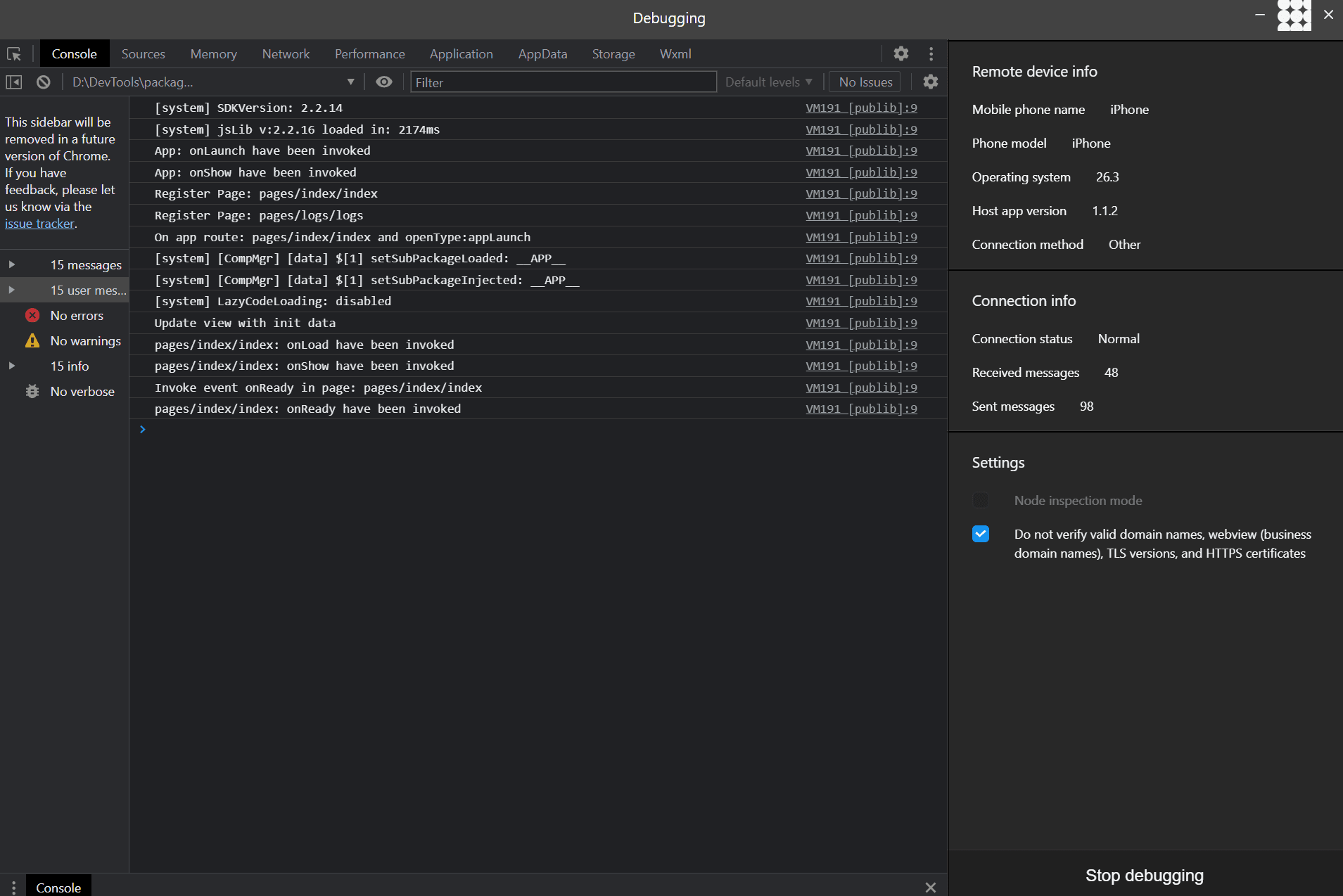
— similar to Preview but with DevTools attached. Use this when you need to inspect network requests, console logs, or track down runtime errors on devices.
similar to review but will open debugging window with logs from your phone
Advanced usage
10. Use of external domains (APIs, URLs, services)
Mini apps use built-in platform APIs to interact with the device and system. These APIs are accessed using the wx object.
These APIs allow your mini app to:
- get device information
- make network requests
- show UI messages
- access platform features
Check if an API is available
Use wx.canIUse() to check whether a feature or API is supported in the current version of the platform. This helps avoid errors when running on different devices or client versions.
Returns: true - feature is supported; false - feature is not supported
Access environment variables
Use wx.env to get environment information.
Important variable: USER_DATA_PATH
This is the local file storage path where your mini app can store user data.
Custom APIs in Luffa Mini Apps
Luffa mini apps can call platform features using custom APIs. These APIs let your mini app interact with the Luffa client, for example to:
- get user information
- connect to wallets
- make payments
- share mini apps
- open chats or groups
- sign blockchain transactions
All custom APIs are called using the same function:
wx.invokeNativePlugin()
This sends a request from your mini app to the Luffa client.
Common things you can do with mini apps
1. Get User Information
Retrieve user details such as:
- Luffa ID
- nickname
- avatar
- wallet address
Example use case:
- login to your mini app
- create user profiles
- personalise experiences
2. Wallet & Blockchain Integration
Mini apps can interact with Luffa wallets.
- connect user wallet
- sign transactions
- send payments
- verify signatures
3. Payments
Mini apps can trigger payments through the Luffa wallet.
- buy digital items
- pay for game actions
- purchase event tickets
- send tips or donations
4. Sharing
Mini apps can be shared directly inside Luffa. You can share:
- the mini app itself
- a specific page
- content from inside the app
5. Chat Integration
Mini apps can open chats directly.
- start a chat with a user
- open a group
- link to a channel