On this page
Mini Program Management
Mini program list
functional purpose
Mini program developers can create mini program projects, and the platform will also provide a download address for the new version of IDE.
Specific functional operations
- Create small programs: License holders can directly create small programs, and such code resources belong to the user's team.
- Filter: You can select the team you belong to in the top filter box to further filter the mini program list.
- Edit: License holders can modify the basic description information of the mini program.
- On-shelf/off-shelf: Change the on-shelf and delisted status of a mini program. After the mini-program is delisted, all associated applications will not be able to obtain corresponding services and will not be able to release new versions, but they can still submit for version audit.
- Details: License holders can view the App ID of the mini program (very important, please keep this ID information properly) and download new versions of IDE tools.

Version Management
functional purpose
Mini program developers can control the version release of each mini program. The release here will take effect on all associated applications of the mini program. Please note that business personnel should pay attention.
Specific functional operations
- Create small programs: License holders can directly create small programs, and such code resources belong to the user's team.
- Filter: You can select the team you belong to in the top filter box to further filter the mini program list.
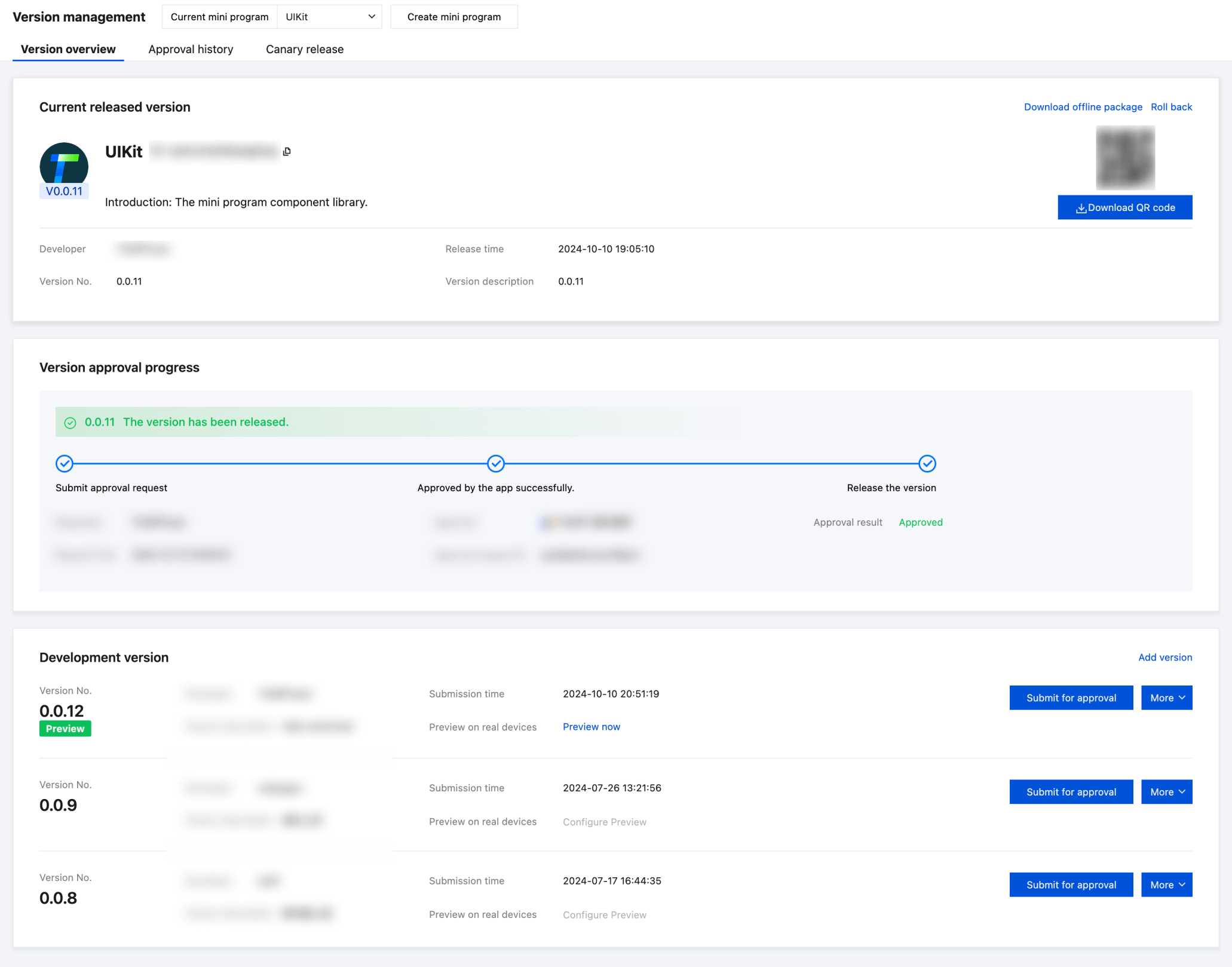
- Version overview: Displays the current online version of the mini program, version audit progress, and development version information.
- Audit records: Displays the audit records of past versions of the current mini program.
- Publication: When the audit process is completed, it can be published by the license holder.
- Version rollback: Roll back the online version of the mini program to a previously released historical version. Continuous rollback is not supported.
- New version: Use the code package format to upload the files packaged by the Luffa Cloud IDE tool here for new version release.
- Submit version audit: Submit the current development version to the application administrator for audit.
- Configure the trial version: Configure the applet to open the page and use relative address configuration.
Grayscale Release
Before the new version of the mini program is officially launched, developers can release the mini program in grayscale to some users. Enter the mini program platform console, go to Version Management > Grayscale Release, and click New Grayscale Task to start the grayscale release process.

Grayscale task settings
- Grayscale version: Grayscale release is a special form of mini program version release and online. The version released in grayscale must have passed the mini program audit, has not been online yet, and has a higher version number than the online version.
- Grayscale task name: Fill in the grayscale task name to distinguish it, no more than 20 words.
- Grayscale time: Select the start and end time of grayscale. The end time of grayscale cannot be earlier than the time point when the creation is confirmed.
- Number of grayscales: Set the limit on the total number of grayscale users.
- Grayscale effective application: Select from all the associated applications of the current applet. After selecting an application, you can enter the version number range limit of the application below (there is no limit if the version number range is empty).
- Grayscale validation platform: Select from Android and iOS platforms. After checking, you can fill in the initial and final version number of the corresponding operating system.
- Grayscale objects: By adding push object conditions, the grayscale version is delivered to a specific user set. Currently, three conditions are supported: GUID, custom device identification, and user account. Developers can manually enter push object information, or upload objects in batches through txt Whitelist.
- Networking pipeline: Choose whether to pull down the grayscale version under a specific network environment.
TIP
The intersection between multiple grayscale conditions is taken. Once one of the conditions is reached, the grayscale version will no longer be released.
Grayscale task management
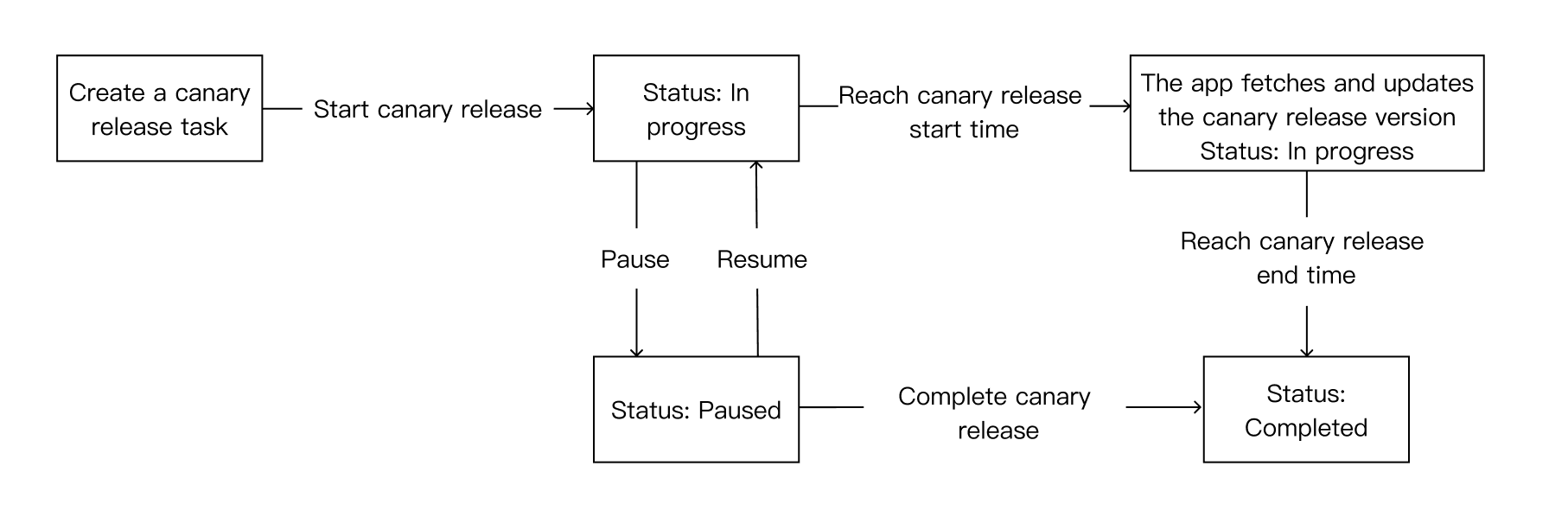
On the grayscale publishing page, multiple grayscale tasks in the list will be sorted from late to early according to the creation time. Each grayscale task has a status of pending delivery, being delivered, suspended, ended, etc., and the flow of tasks among multiple states. The pipeline is shown below:
Click Grayscale Progress to view the delivery status of the current grayscale task.
TIP
When a developer officially releases a mini program version online, grayscale tasks with the same version number or smaller version numbers will automatically end, and all users will be upgraded to the latest released version.
Development Management
functional purpose
Provides small program developers with function variable name setting, sensitive API permission application, and real-time log query functions.
Specific Functions
Domain name settings
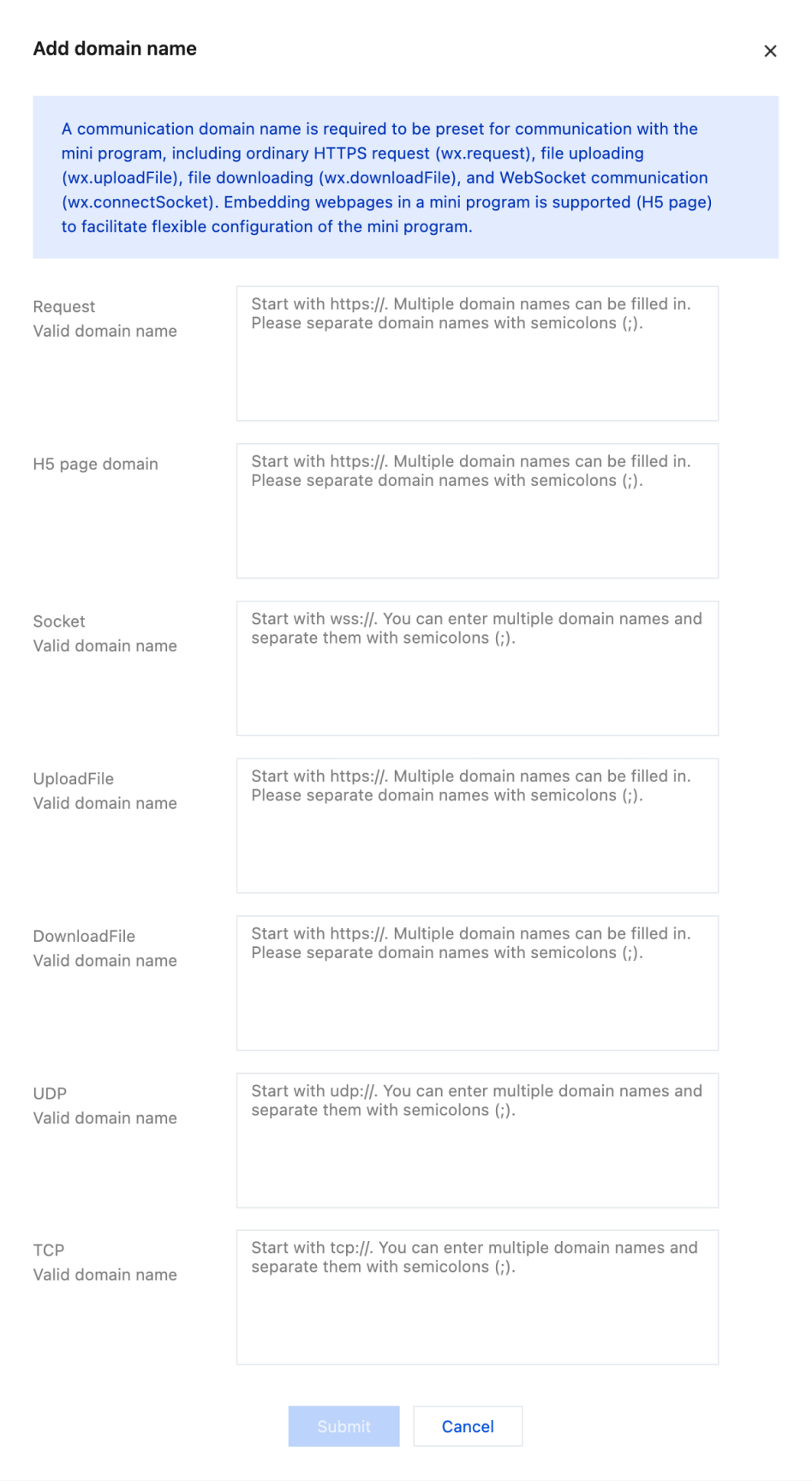
Added domain name: Mini programs need to set up communication domain names in advance, and mini programs can only communicate with the specified domain name. This includes ordinary HTTPS requests (wx.request), uploading files (wx.uploadFile), downloading files (wx.downloadFile) and WebSocket communication (wx.connectSocket). To facilitate developers to flexibly configure mini programs, the platform supports the ability to embed web pages in mini programs (business domain names).
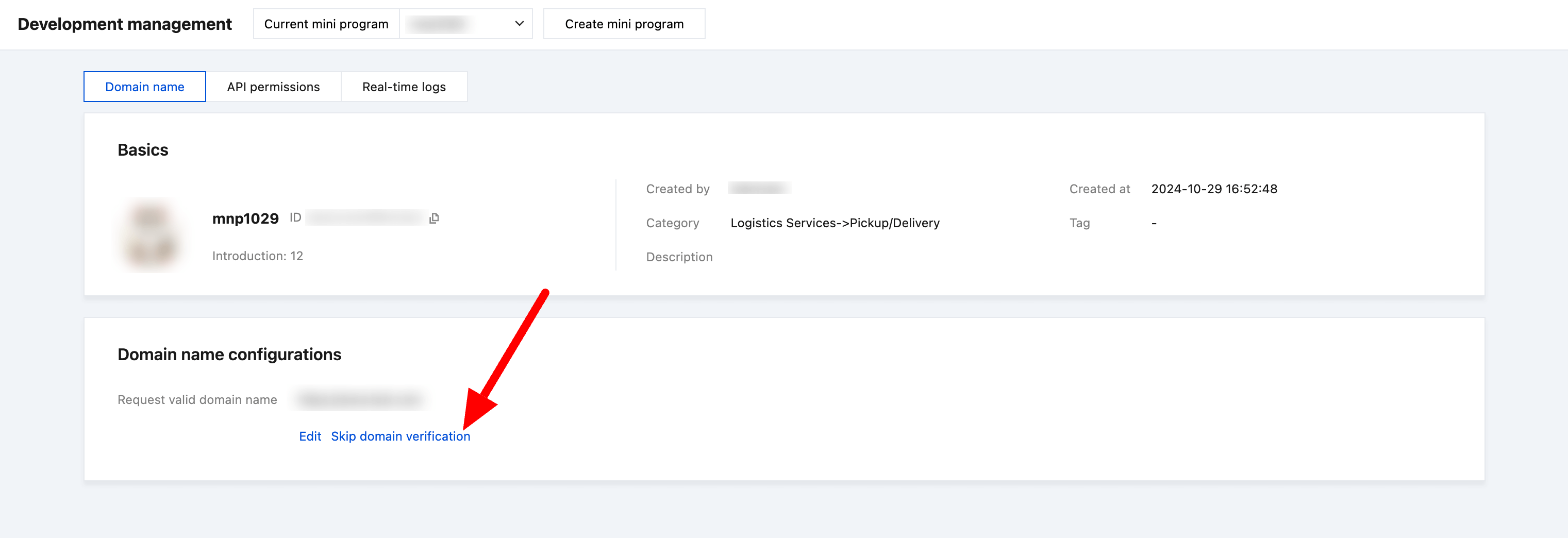
Skip domain name verification
If the domain name configuration of the mini program is inconvenient or changes frequently, the developer can apply to the application party to 'skip domain name verification'. After the application party approves it, the mini program does not need to configure the domain name in the console and can initiate network requests to the mini program's server.
TIP
Mini programs need to comply with the security specifications for function variable names, and service requests must not contain any malicious code, viruses, or other content that may harm user equipment or data.
Interface permissions
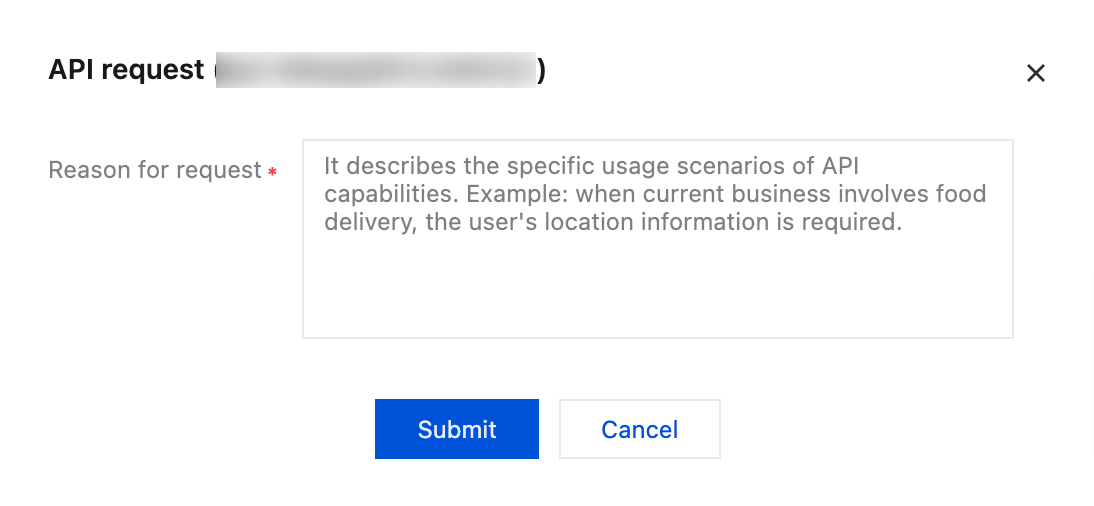
When the host application bound to a mini program has set up a sensitive API, the mini program developer needs to apply to the host App for permission to call the sensitive API. After the approval of the host App's manager or audit permission owner, the mini program can These sensitive APIs can be called normally.
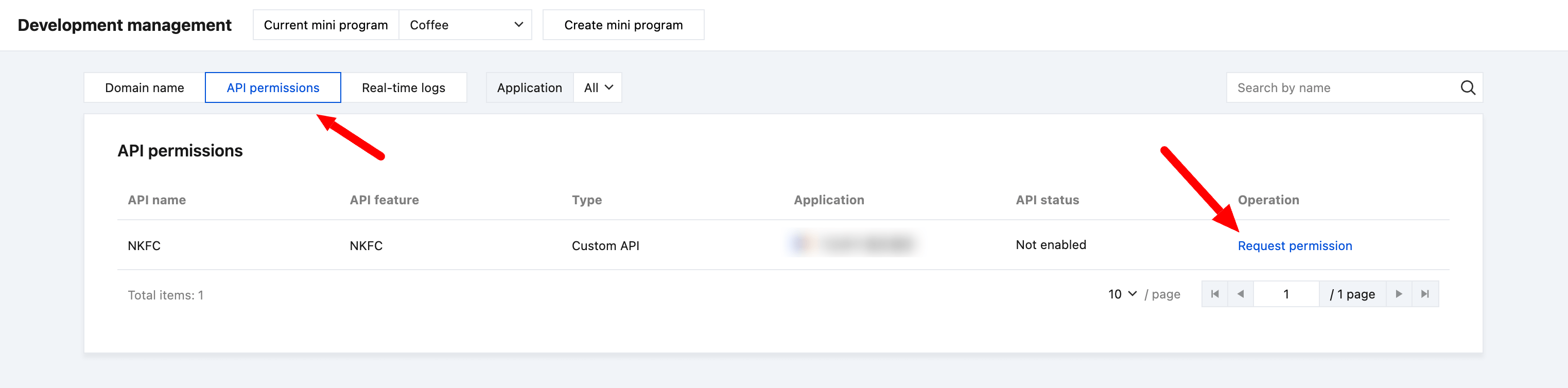
Operate:
Application for activation: Mini program developers apply to application managers or auditors for permission to use sensitive APIs.
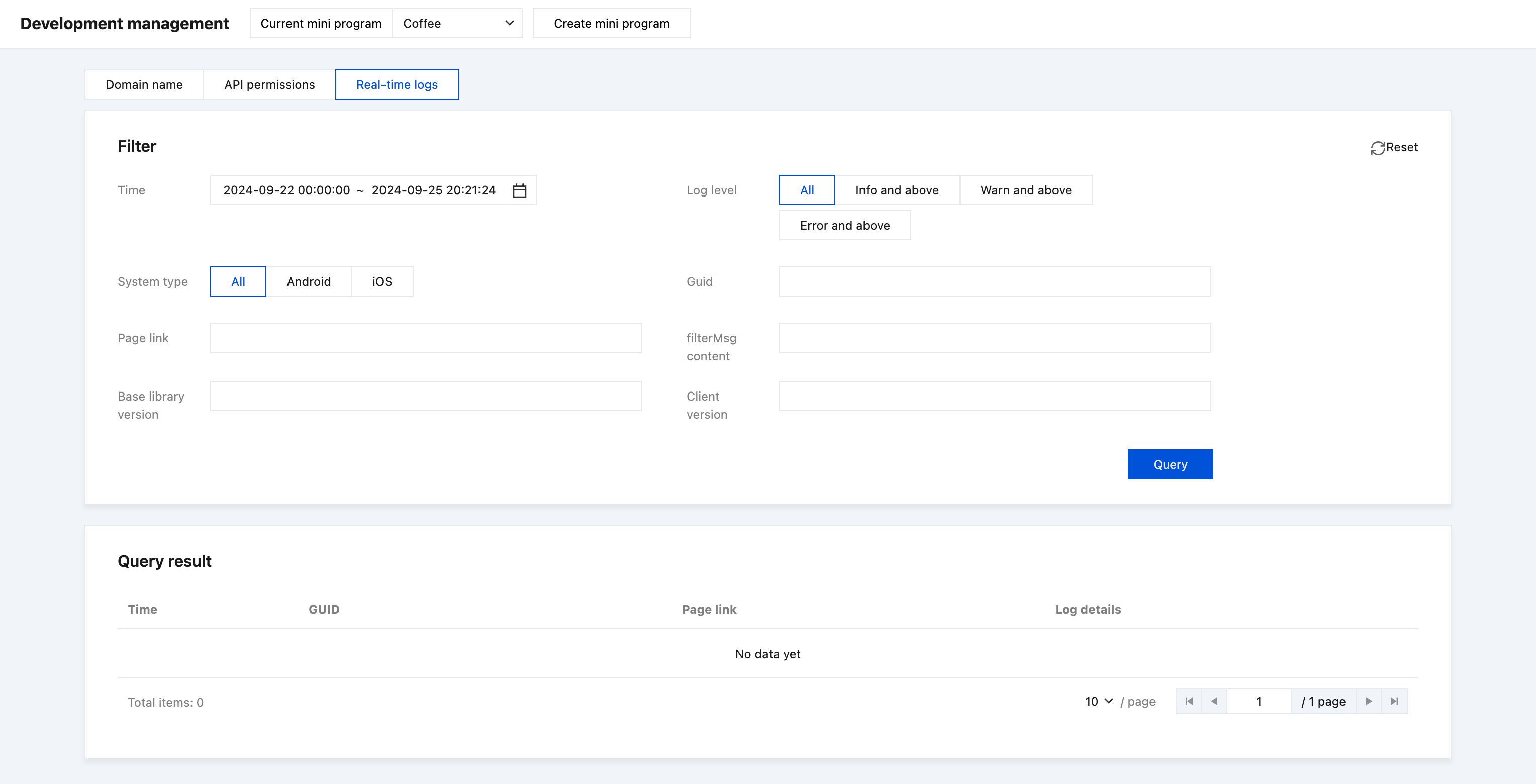
real time log
Query criteria: Query criteria include time, log level dimensions (all, info and above, warn and above, error and above), system type, Guid, page link, filterMsg content, basic library version, and client version.
Key Management
AppSecret (Mini Program Key) is required for authentication in important processes such as mini program login and payment. Only the mini program team administrator has the authority to view and operate key management. You can generate, reset, and freeze keys in the key management.
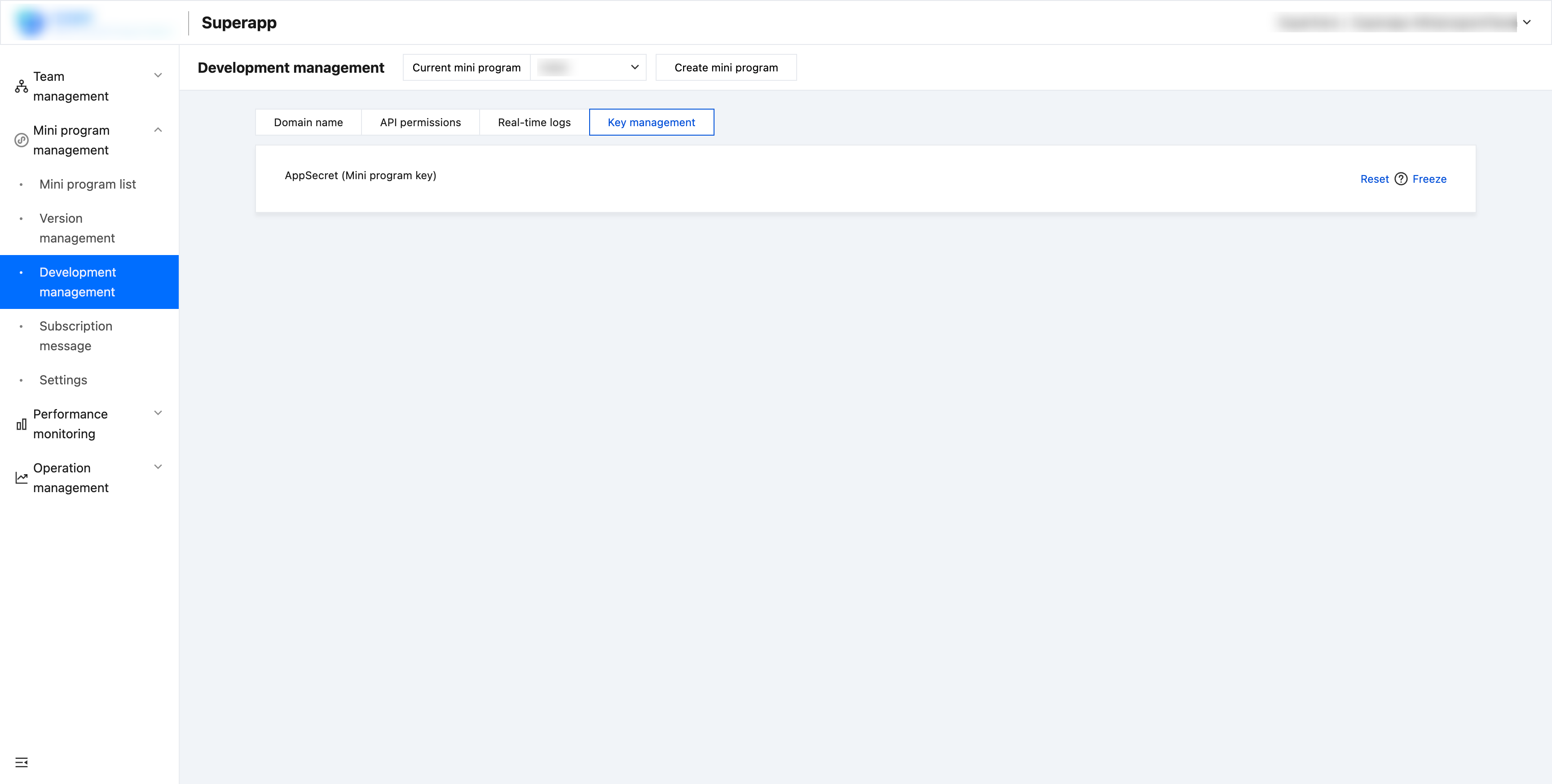
Operate:
- Generate
- Reset
- Freeze
Subscription Message
Preface
Message capability is an important part of mini program capability. Super app provides mini program developers with the ability to subscribe to messages in order to realize the service closed loop within the mini program. Through the ability of message subscription and notification, the business status changes within the mini program can be pushed to the users of Super app in a timely manner. When using the subscription message function, the mini program developer needs to select the applicable message template from the public template library in the console-mini program management-subscription message, configure the push field, and add it as "My Template".
Console Operation
Public Template Library
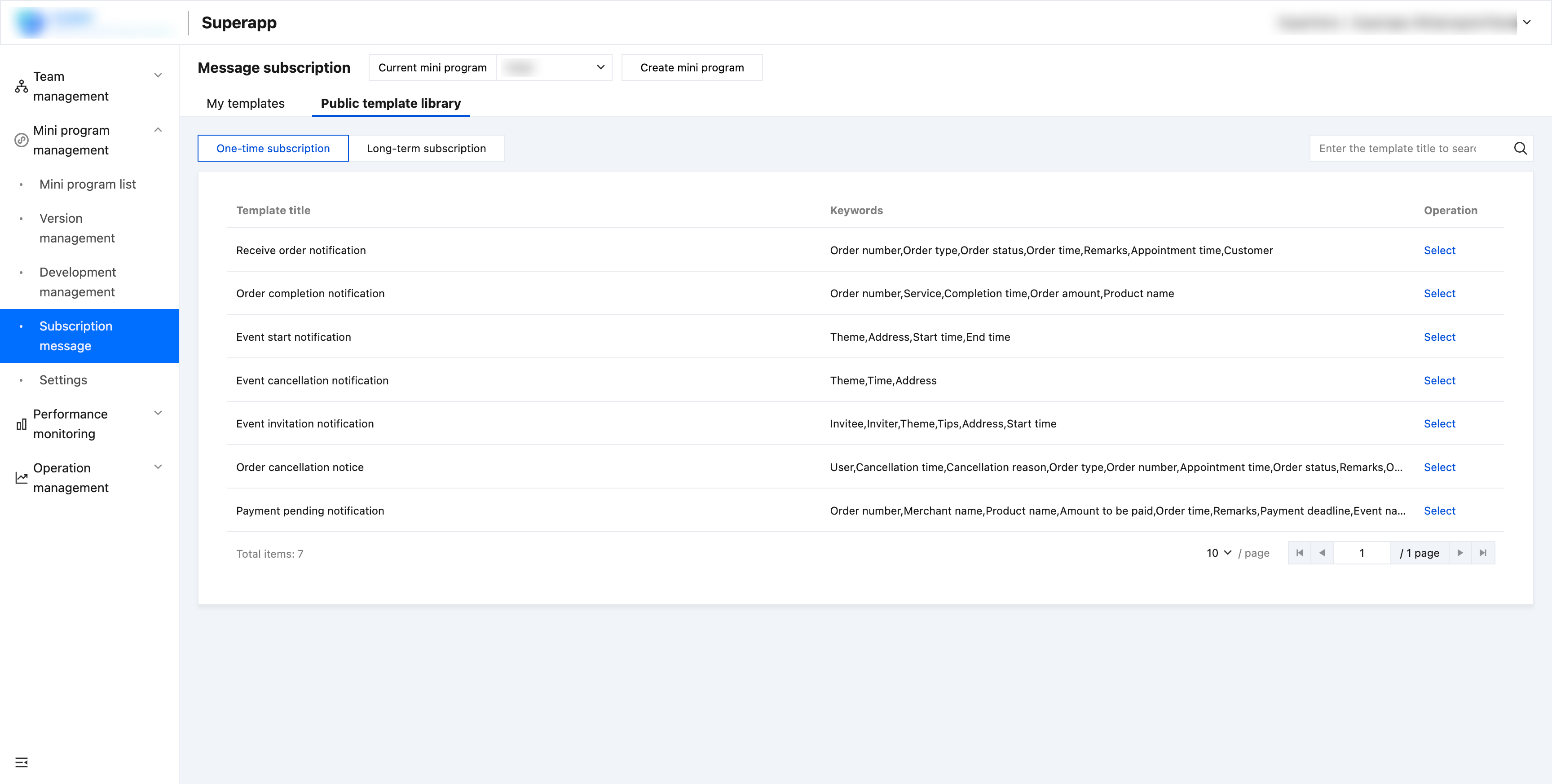
Developers can select the template type to be used in the public template library according to the business scenario, and search for the applicable template by template name.
Message Type Description
One-time Subscription
One-time subscription message is used to solve the notification problem of subsequent service links after users use the mini program.
After the developer calls the requestSubscribeMessage interface in the mini program, a pop-up window will be displayed to the user, and the user can turn on the message switch they want to receive. After the user subscribes, the developer can send a corresponding service message at any time.
Long-term subscription
Under normal circumstances, a one-time subscription message can already meet most of the service scenario requirements of the mini program, but there are scenarios in the offline public service field that cannot be met by a one-time subscription, such as flight delays, which require multiple message reminders based on the real-time dynamics of the flight. To facilitate service, we provide long-term subscription messages. After the user subscribes once, the developer can send multiple messages for a long time. Long-term subscription messages are suitable for offline public services such as government affairs, people's livelihood, medical care, transportation, finance, and education.
TIP
Using long-term subscription messages, you can send messages to users multiple times, but frequent message sending may cause trouble to users. Therefore, the platform limits each long-term subscription template message to a maximum of 5 pushes per day.
Select a template
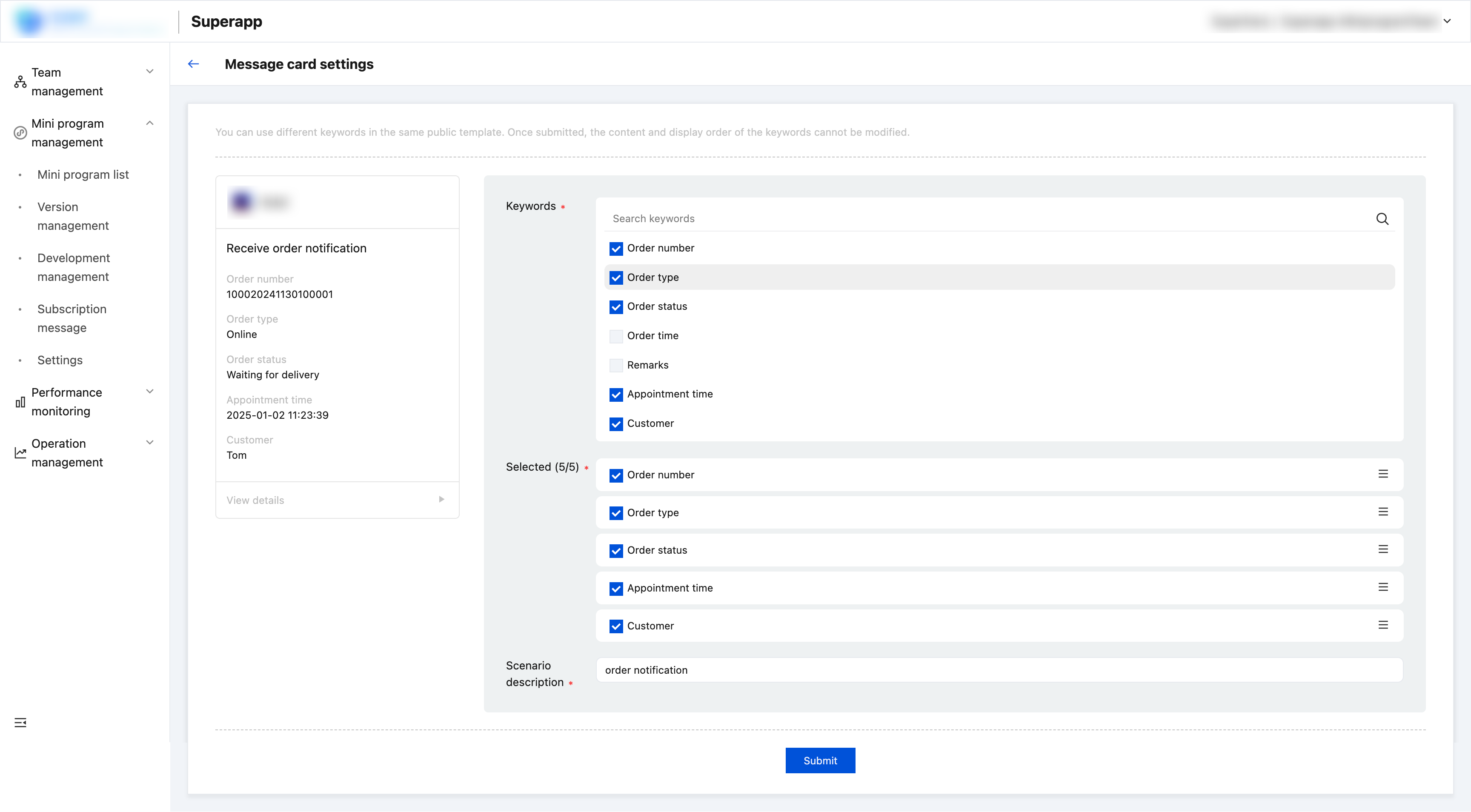
In the public template library, find the target template and click "Select" to enter the template configuration page. There will be multiple keywords under each public template. Developers can select 1 to 5 keywords from the keyword list. Please refer to the preview effect on the left for the pop-up content displayed to users on the App. Drag the sort button on the right in the selected list to arrange the keywords in order.
TIP
When using the same public template to add as "My Template", the keywords cannot be repeated in the added "Personal Template".
My Template
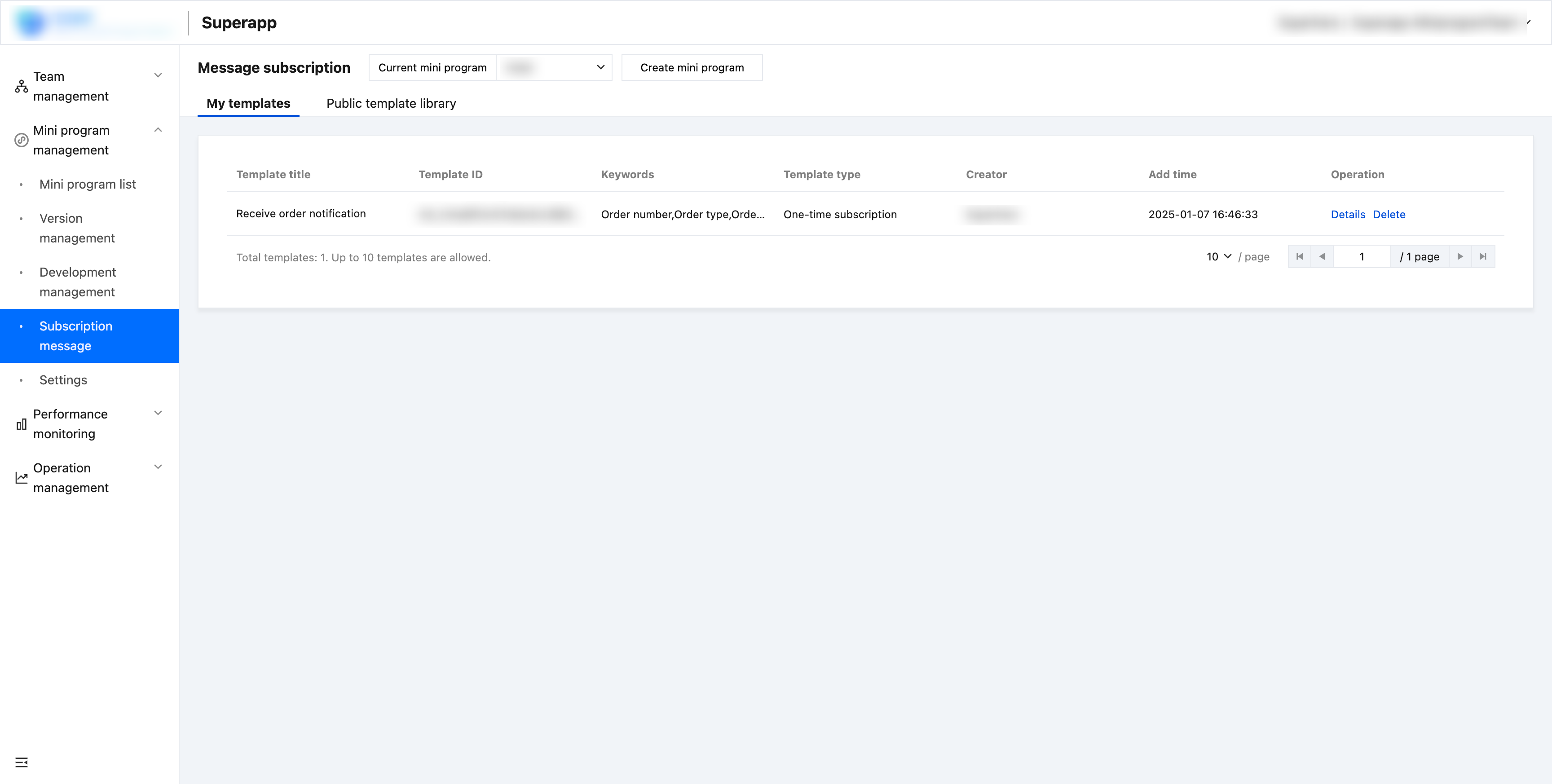
The template selected and configured from the public template library will be added to the "My Template" list. Developers can use the message templates in "My Template" to complete the development of the subscription message function.
Development Notes
- One-time template IDs and long-term subscription template IDs cannot be used at the same time.
- A maximum of 3 messages can be subscribed in one call.
- The subscription message interface can only be called up after the user clicks.
- In one authorized call, the template title corresponding to each tmplId cannot be the same. If the same one appears, only one is retained.
Settings
functional purpose
Set up a user privacy protection agreement and modify it directly based on the provided template.
Offline Applet
Function Description
Offline mini programs are mini programs built into the host App. The mini program package needs to be downloaded from the console, imported into the host App project, and packaged with the App. During the use of the App, the user opens a built-in mini program. A small program that can be opened and run even without a network connection without having to pull downloads from the backend.
Specific functional operations
1.Download the small programs that need to be preset from the console.
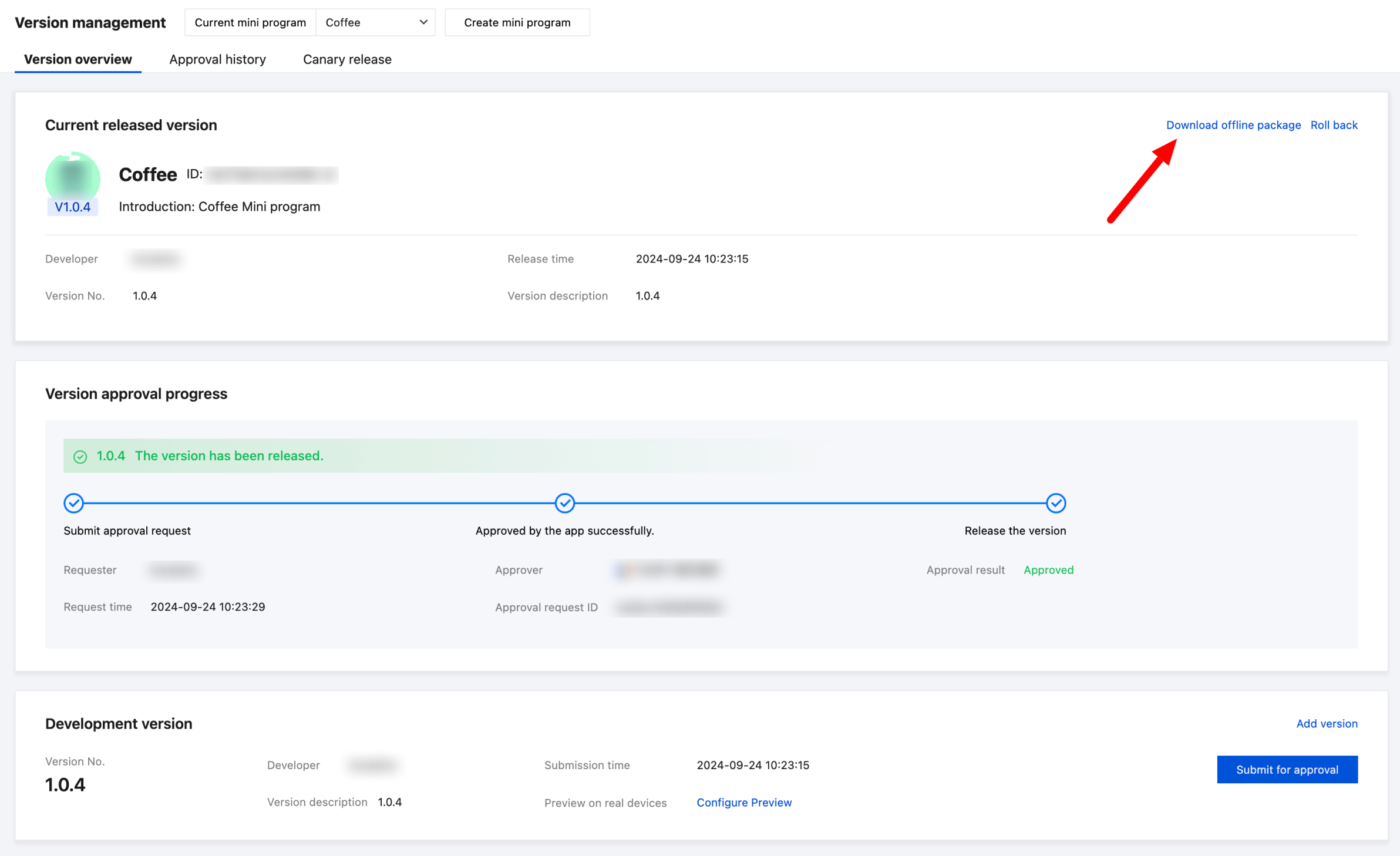
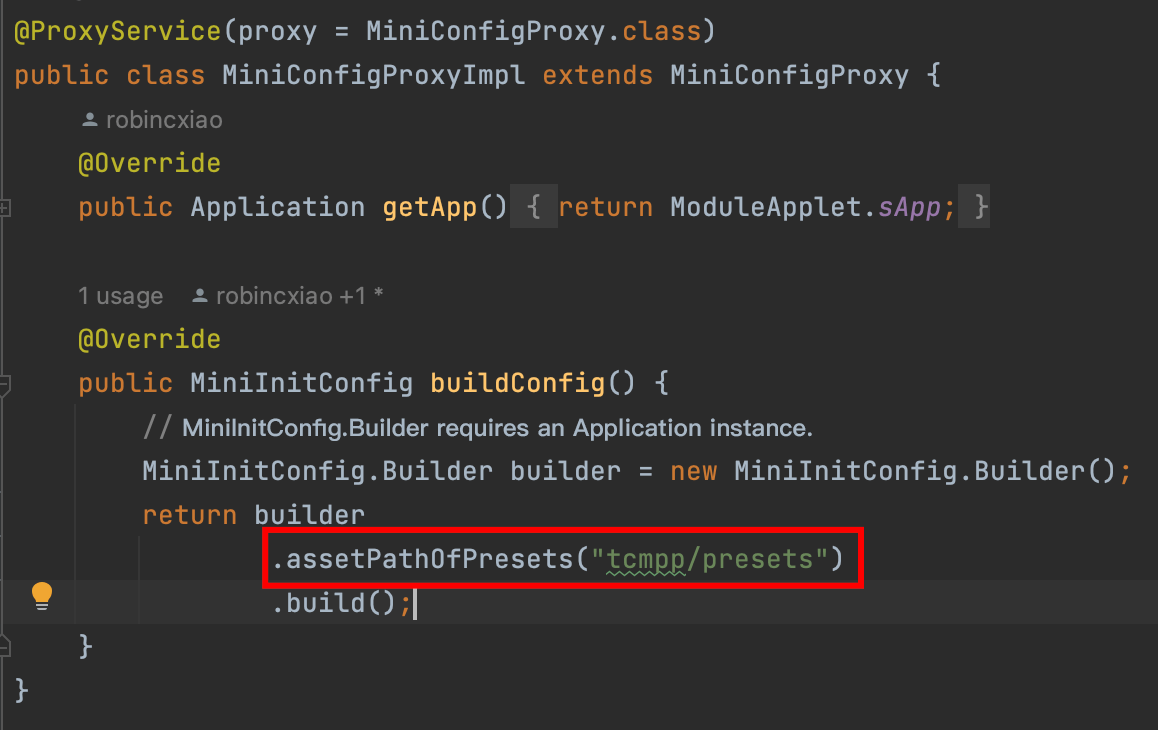
2.Copy the downloaded mini program package to the customized assets directory. Offline mini programs must strictly abide by the naming rules and cannot be modified at will.
TIP
Offline applet naming rules:{miniAppId}_{miniAppVersion}.apkg
3.In the SDK initialization configuration, specify the asset directory where the offline applet was placed in the previous step.
Things To Note
- Offline mini programs also need to go through the normal mini program binding application and publishing process. Only online mini programs can download offline packages.
- Offline mini programs are suitable for version management logic such as new version release, version rollback, and removal. When the online version is inconsistent with the preset version, the client will pull the online version normally.
- When a mini program is removed from the shelves, the corresponding offline mini program preset in the App cannot be used normally.