On this page
Applet Host Environment
Luffa Cloud mini-programs can be run in various types of mobile applications. When loading and starting the mini-program, the required operating environment and capabilities need to be provided by the client application to the mini-program. We call this environment the 'host environment (host application)'. With the capabilities provided by the host environment, the mini-program can complete many functions that ordinary web pages cannot achieve.
1.Rendering layer and logic layer
The operating environment of the mini-program is divided into two parts: the rendering layer and the logic layer.
The logic layer is used to load the JS script responsible for processing business logic in the mini-program, while the rendering layer is used to render WXML templates and WXSS styles to display the final page.
In the mini-program, the logic layer and the rendering layer are managed by two independent threads respectively.
- The logic layer uses the JS Core engine to run JS scripts to process business logic;
- The rendering layer interface uses WebView for rendering (if there are multiple pages in a mini-program, there will be multiple WebView threads).
Therefore, there is only one JS Core thread and multiple WebView threads in a mini program application. The communication between these two threads will be transferred through the host client (Native will also be used to refer to the host client below), and the network request sent by the logic layer will also be forwarded through Native.
The communication model of the mini program is shown in the figure below:
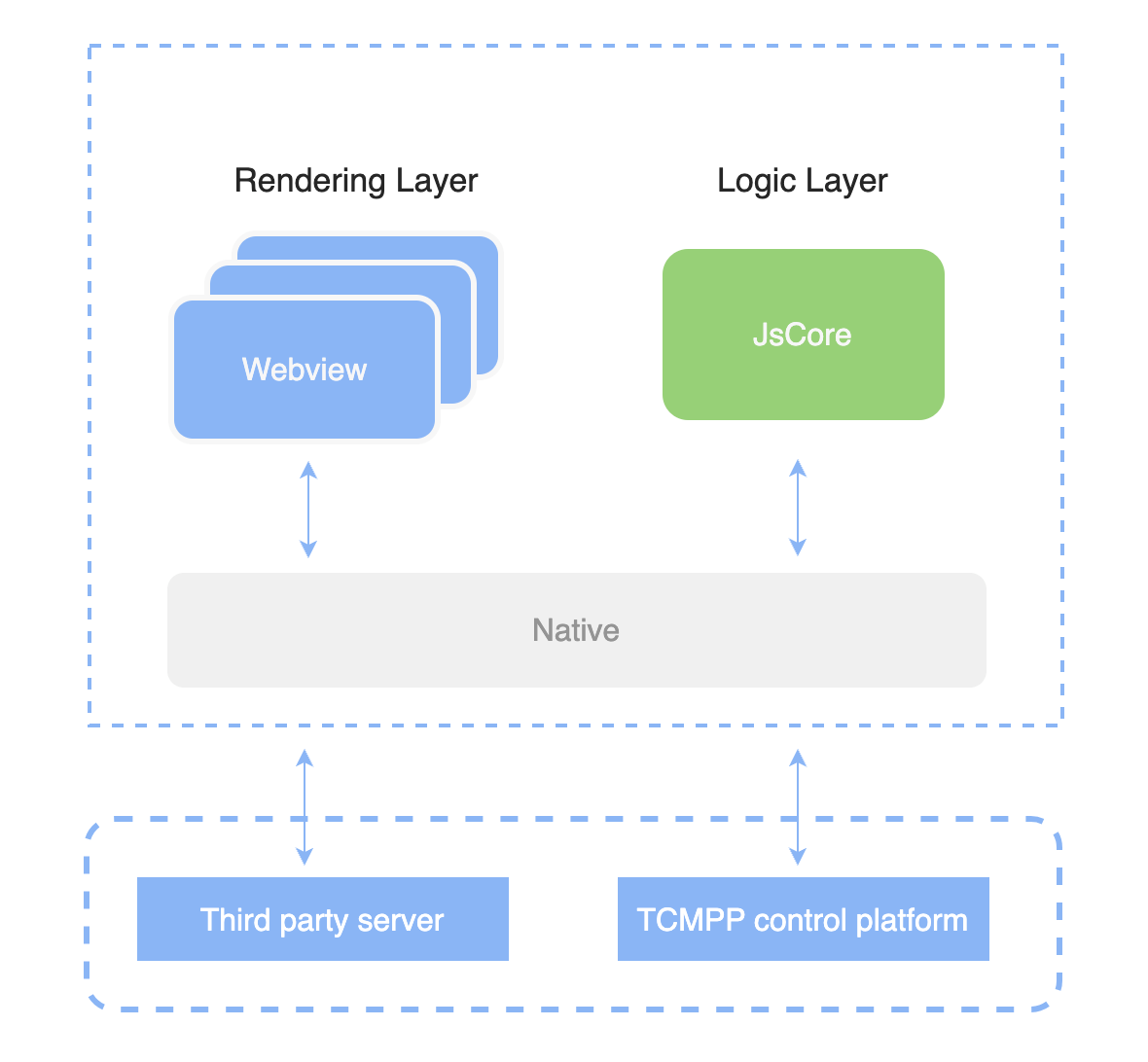
Luffa Cloud mini programs can run on multiple platforms: iOS/iPadOS client, Android client, and Luffa Cloud developer tools for debugging, etc.
In different operating environments, the script execution environment and the environment for component rendering are different, and the performance is also different:
- On iOS and iPadOS, the JavaScript code of the mini program logic layer runs in JavaScriptCore, and the view layer is rendered by WKWebView. The environment includes iOS 14, iPad OS 14, etc.
- On Android, the JavaScript code of the mini program logic layer runs in V8, and the view layer is rendered by the self-developed XWeb engine based on the Mobile Chromium kernel.
- In the development tools, the JavaScript code of the mini program logic layer is run in NW.js, and the view layer is rendered by Chromium Webview. JavaScriptCore cannot enable JIT compilation (Just-In-Time Compiler), and the running performance under the same conditions is significantly lower than other platforms.
2.Program and Page
Before opening the mini program, the host client will download the entire mini program code package to the local computer and then parse the pages field in app.json to know all the page paths of the mini program:
js
{
  "pages":[
     "pages/index/index",
     "pages/logs/logs"
   ]
}
This configuration description defines two pages in the project, located at pages/index/index and pages/logs/logs respectively, and the first page written in the pages field is the homepage of the mini program (the first page you see when you open the mini program).
For each page path, you can find the corresponding file path in the program code package, such as pages/index/index. Under this path, there are WXML, WXSS, JS files and JSON configuration files corresponding to this page.
After the mini program is started, the onLaunch callback of the App instance defined in app.js will be executed:
js
App({
  onLaunch() {
   // Triggered after the mini program is launched.
  }
})
The entire mini program has only one App instance, which is shared by all pages. For more event callbacks, refer to the document Register the mini program
Next, let's take a look at how a page of the mini program is written
You can observe that pages/logs/logs actually includes 4 types of files. The host client will first generate an interface according to the logs.json configuration. You can define the color and text at the top in this json file. Then the client will load the WXML structure and WXSS style of this page. Finally, the client will load logs.js. You can see that the general content of logs.js is:
js
Page({
  data: { // Data involved in page rendering
    logs: []
  },
  onLoad() {
    // After the page is rendered, execute the
  }
})
Page is a page builder. This builder generates a page. Data represents the rendering data needed for the page. When generating the page, the mini program framework will render the data and index.wxml together to form the final structure, so you get the mini program you see.
After rendering the interface, the page instance will receive an onLoad callback, where you can process your logic.
TIP
For more detailed documentation on Page builder, refer to Registration page
3.Component
Components are provided by the mini program to developers to create page UIs. Customizing WXML is like HTML <div>, <p> and other tags. In the mini program, you only need to write the corresponding component tag name in WXML to display the component on the interface. For example:
js
<view>Welcome to TCMPP</view>The page displays a line of text: Welcome to Luffa Cloud. Developers can control the style of the component through style and class to specify width, height, color, etc.
TIP
For more components, refer to Component Overview
4.API
In order to make it easier for developers to use the capabilities provided by mini programs, Luffa Cloud provides a variety of APIs for developers to use. Developers can use these APIs to modify the mini program interface, obtain the current location of the device, play videos, audio, etc.
APIs are divided into synchronous and asynchronous types. Synchronous APIs will return results directly, while asynchronous APIs will return results through callbacks. Developers need to process the logic according to the API callback method and pass in the correct parameters to process the business.
To obtain the user's geographic location, just call wx.getLocation asynchronously:
js
wx.getLocation({
  type: 'wgs84',
  success: (res) => {
    var latitude = res.latitude // latitude
    var longitude = res.longitude // longitude
  }
})
To obtain device information, just call wx.getSystemInfo synchronously or asynchronously:
js
// asynchronous
wx.getSystemInfo({
  success (res) {
    console.log(res.model)
    console.log(res.pixelRatio)
    console.log(res.windowWidth)
    console.log(res.windowHeight)
    console.log(res.language)
    console.log(res.version)
    console.log(res.platform)
  }
})

// synchronous
try {
  wx.getSystemInfoSync();
} catch(e) {}
TIP
For more API capabilities, see API Overview