On this page
Team Management
Team List
functional purpose
Enterprise management authority holders can manage internal business lines or third-party cooperative enterprises through the concept of creating a new team.
Specific functional operations
Create a new team
Platform administrators can create a new team and set the team administrator and the functional permissions of the team.
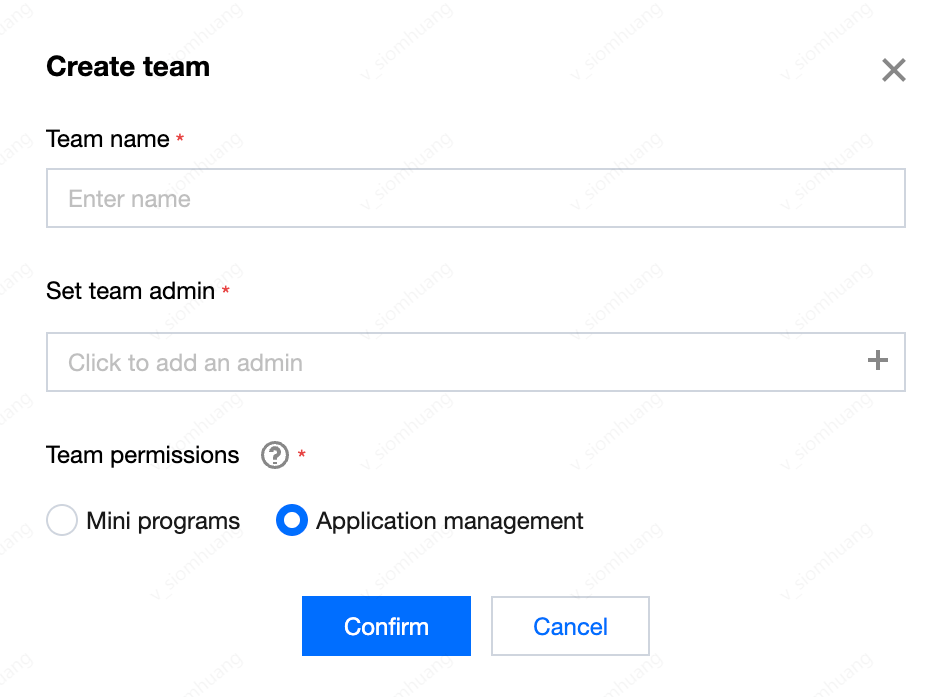
Create a team-application team
You need to have an application team before you can create an application under the application team.
Click Create Team, enter the team name in the pop-up window, and select 1 user from the user list or create a new user and set it as a team administrator.
Select the team permission as 'application management' and click OK to create an application team.
Create a team-mini program team
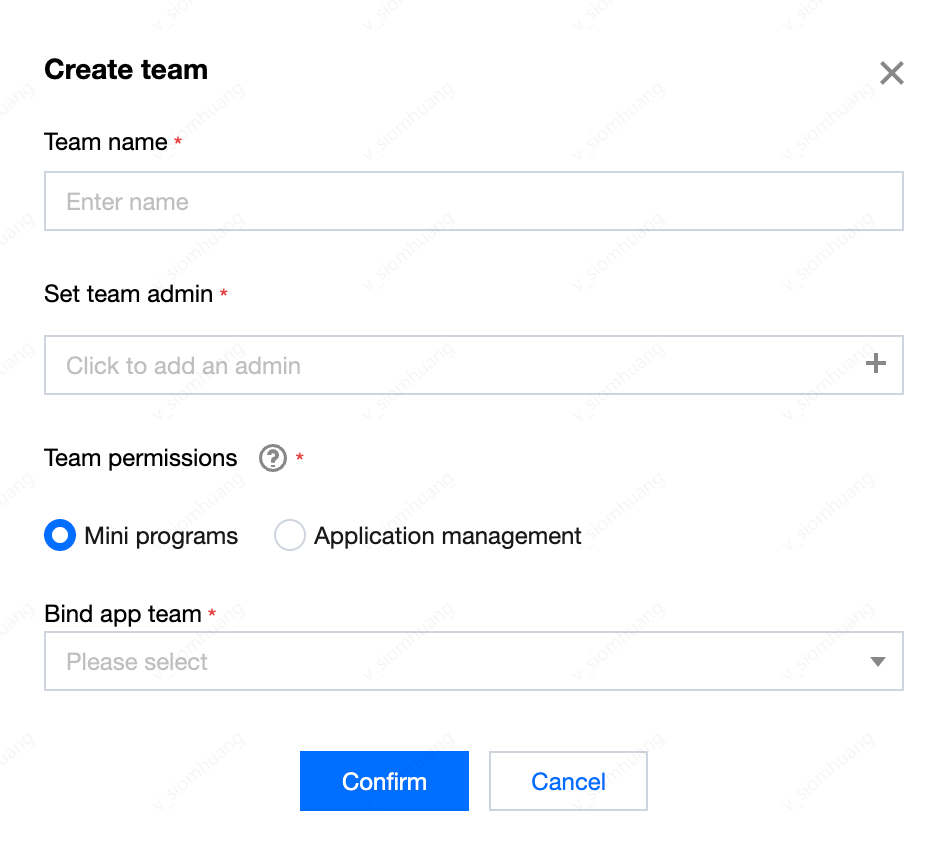
After version 2.0.4, the mini program team needs to be bound to an application team, and a mini program team can only serve one application team.
Click Create Team, enter the team name in the pop-up window, and select 1 user from the user list or create a new user and set it as a team administrator.
Select the team permission as 'mini program management', select the application team to which the mini program team is to be bound, and click OK to create a mini program team.
Register a Mini Program Team
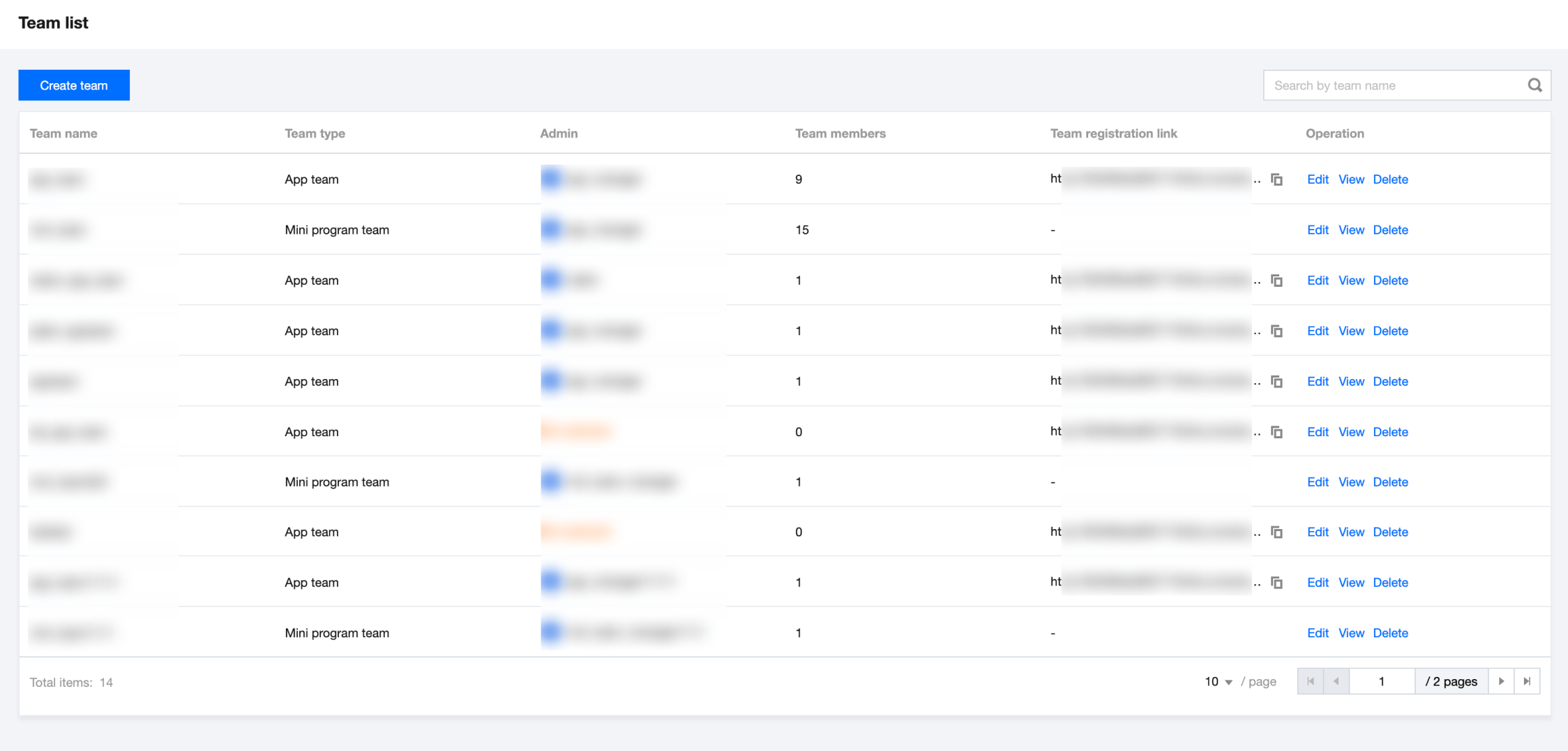
In version 2.0.4, Luffa Cloud has added a Mini Program Team registration function. Since a Mini Program Team can only be bound to one application team, after creating an application team, the application team will generate a link to register the Mini Program Team. Users need to use the registration link to register the Mini Program Team. After the Mini Program Team is registered, it will be bound to the application team by default.
Get the registration link
After the application team under the team list, you can get the Mini Program Team registration link. The super administrator or platform administrator can copy the registration link and send it to the person who needs to register the Mini Program development team.
Register the Mini Program Development Team through the registration link
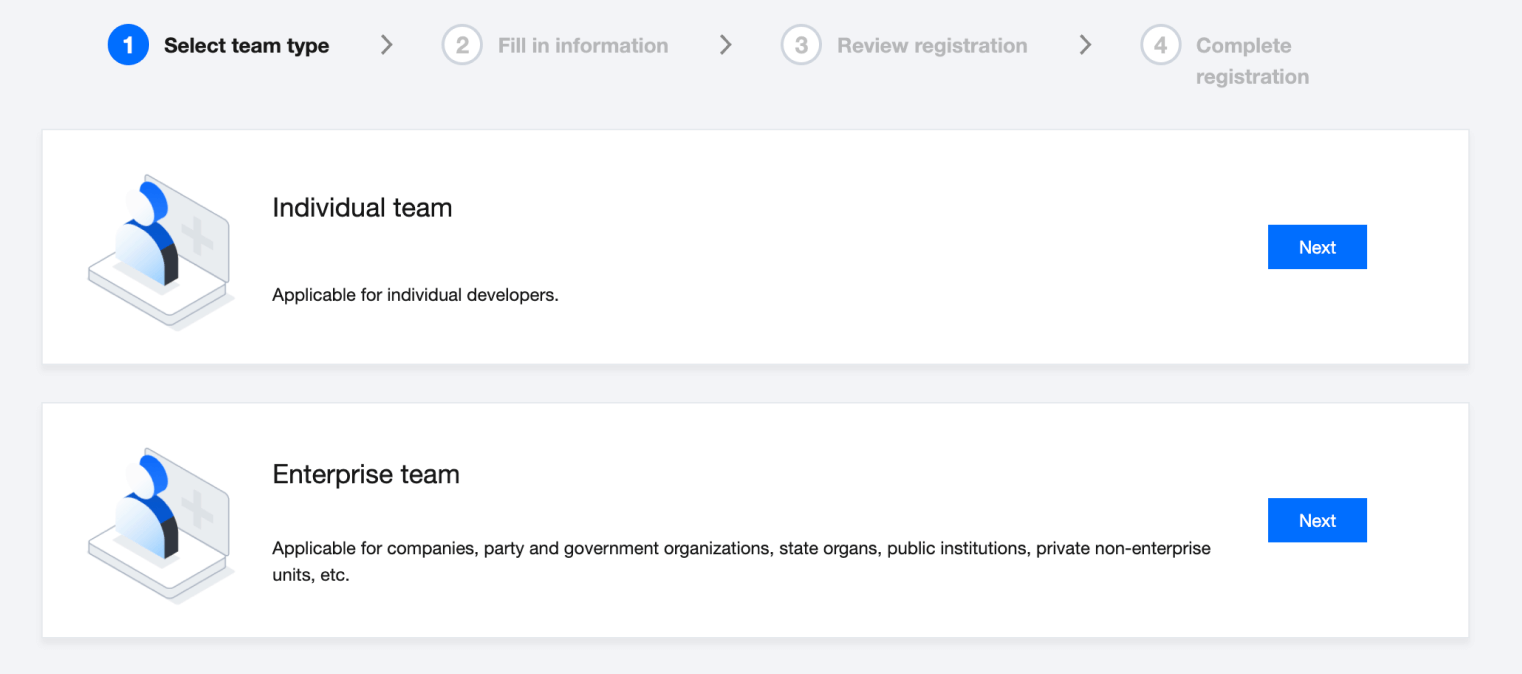
Open the registration link, the user needs to log in and enter the page for registering the Mini Program developer team.
Select the team type as 'Personal Team' or 'Enterprise Team' and click Next.
Fill in the registration information, enter the company name (fill in the real name of the individual for the personal team type), fill in the team name, and the notes for the application.
Click Get Verification Code, the platform will send a verification code to the user's bound email address, fill in the verification code after obtaining it, and click Submit Application.
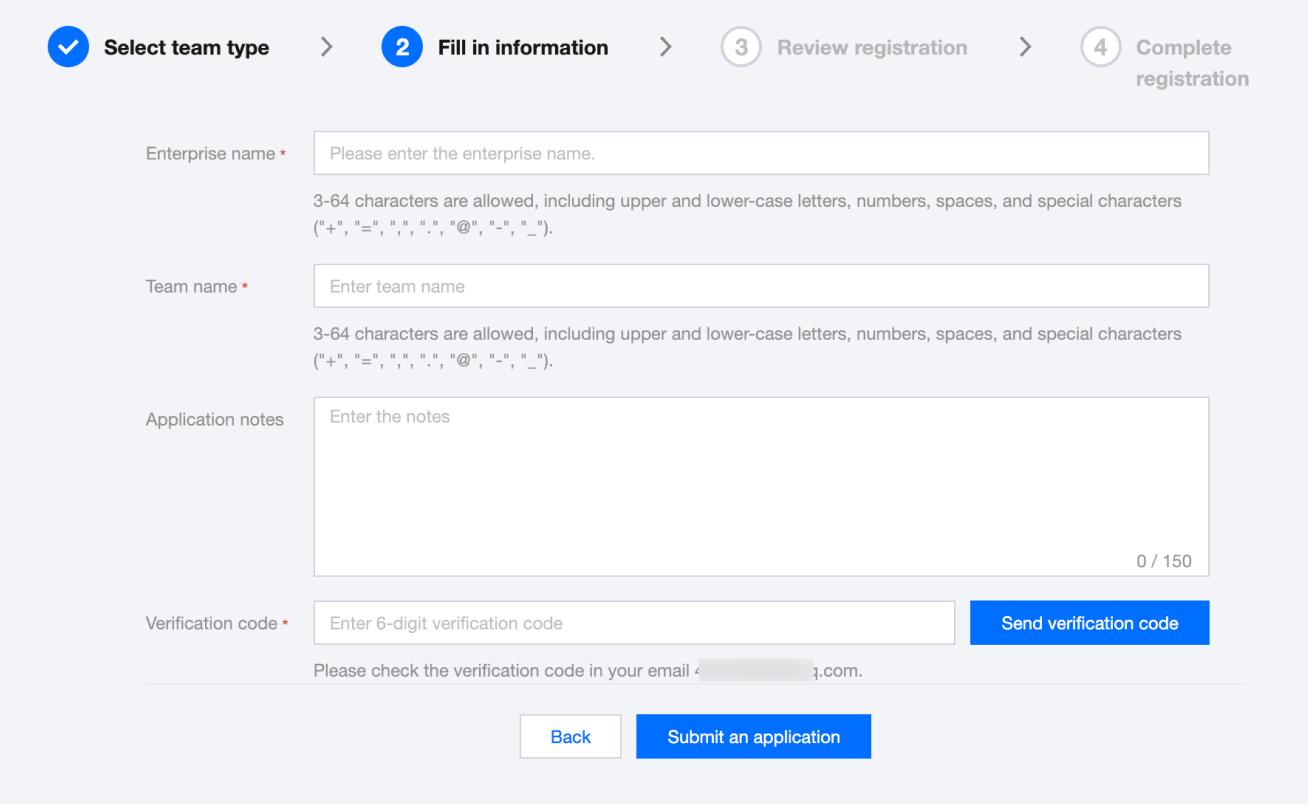
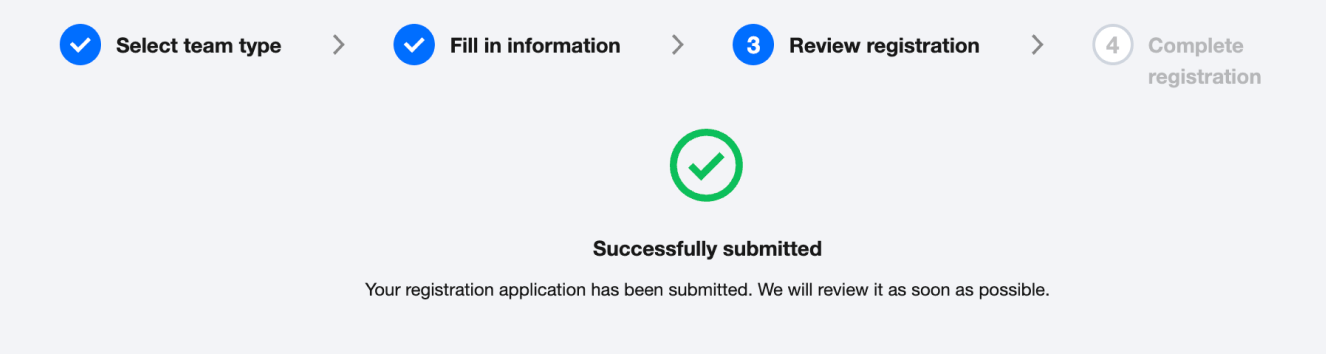
After submitting the application, wait for review.
Mini Program Team Registration Review
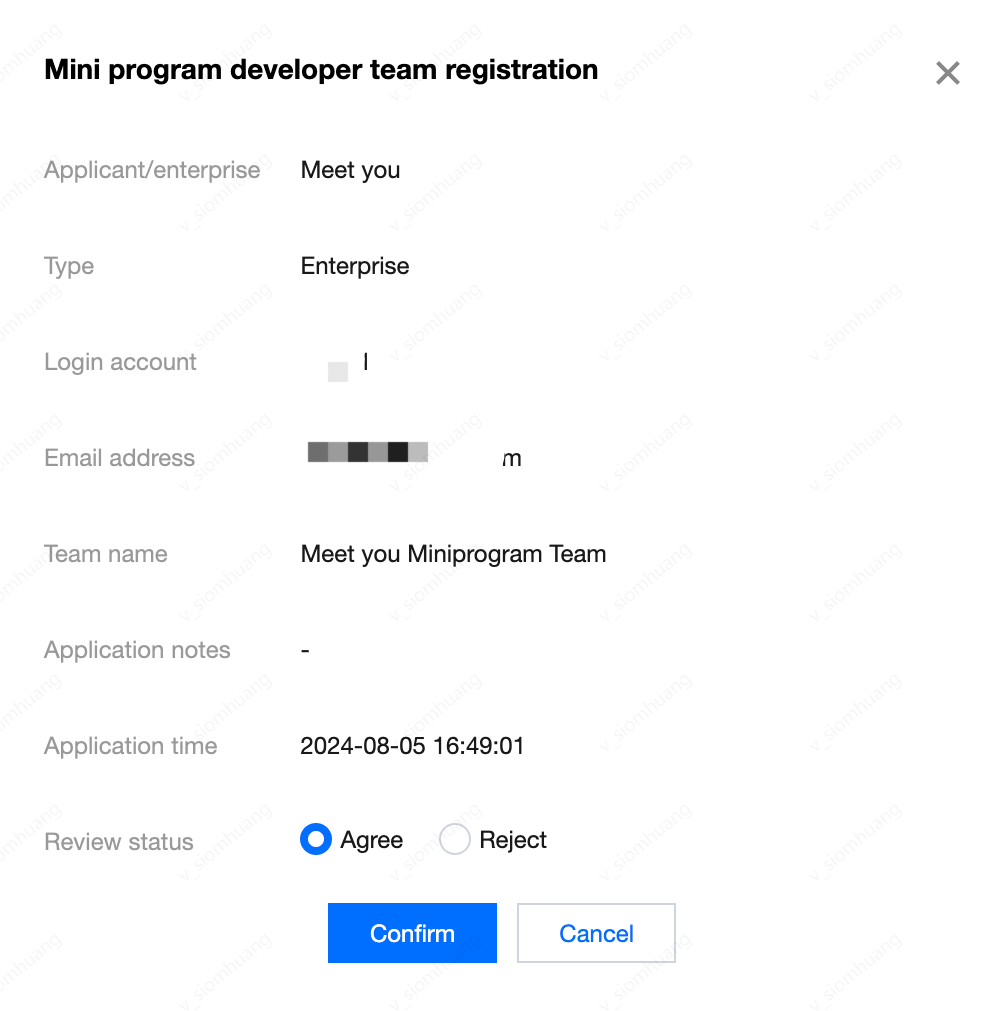
Platform administrators can view the registration application of the Mini Program developer team in the Team Management-Registration Approval module.

Click Review to approve this registration application. If you select 'Agree', the registration is approved. If you select 'Reject', enter the reason for rejection and click OK to reject the registration application.
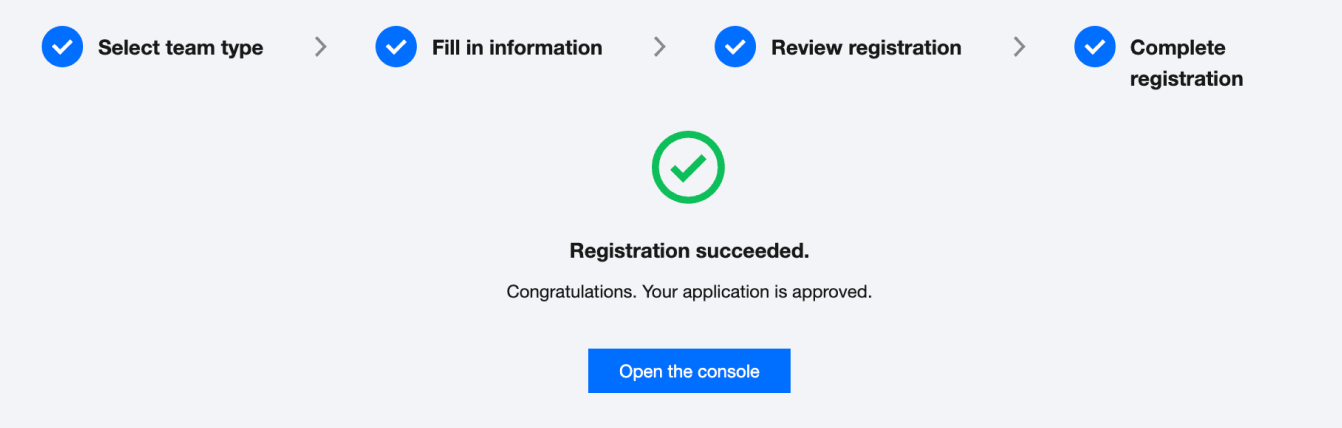
Successful Registration
After approval, developers visit the registration team link to view the successful registration status. At this time, the Mini Program team has been created. Click 'Enter the Console' to enter the team.
Other Operations
- Edit: Enterprise management authority holders can modify team administrators and team names.
- View: View team members.
- Delete: Delete the team account. Please note that this deletion will cause the application and Mini Program resources under the team to be unable to be retrieved.

Member Management
functional purpose
Application administrators, application team member managers, Mini Program team administrators, and Mini Program team member managers can add members to the team.
Application team member management
Add Members
Application administrators and application team member managers can click Add Members in the upper left corner of the Team Management > Member Management page on the left menu of the console.
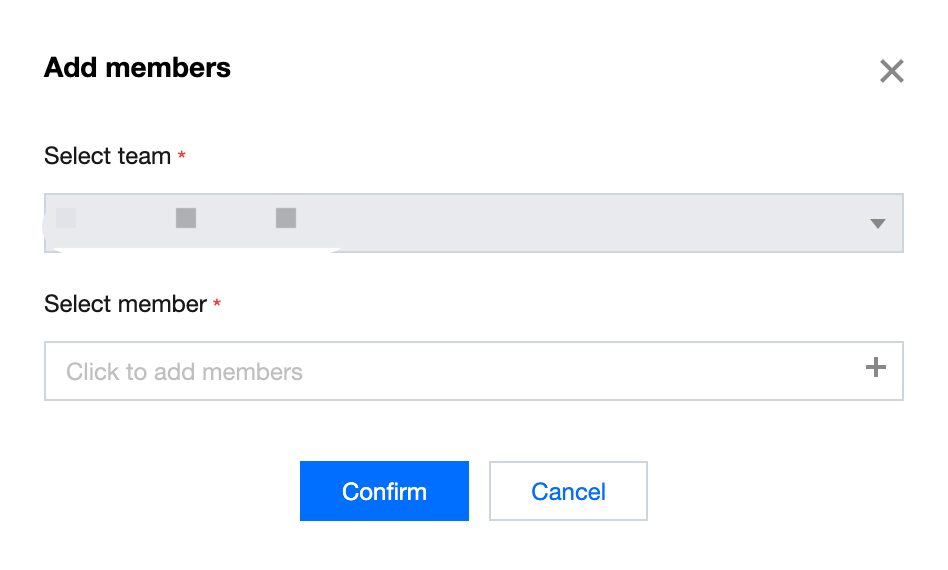
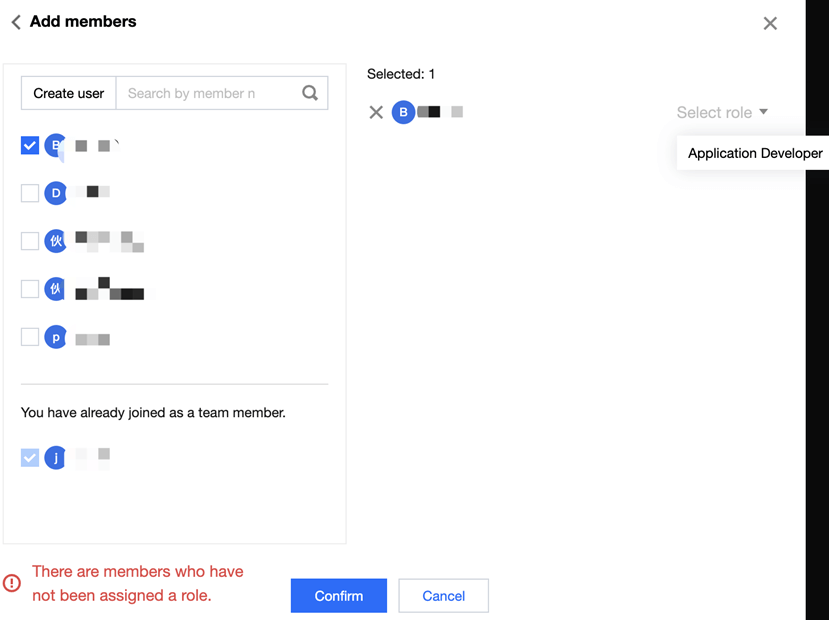
You can select a common user from the platform user list, add him to the team, and assign a role to him.
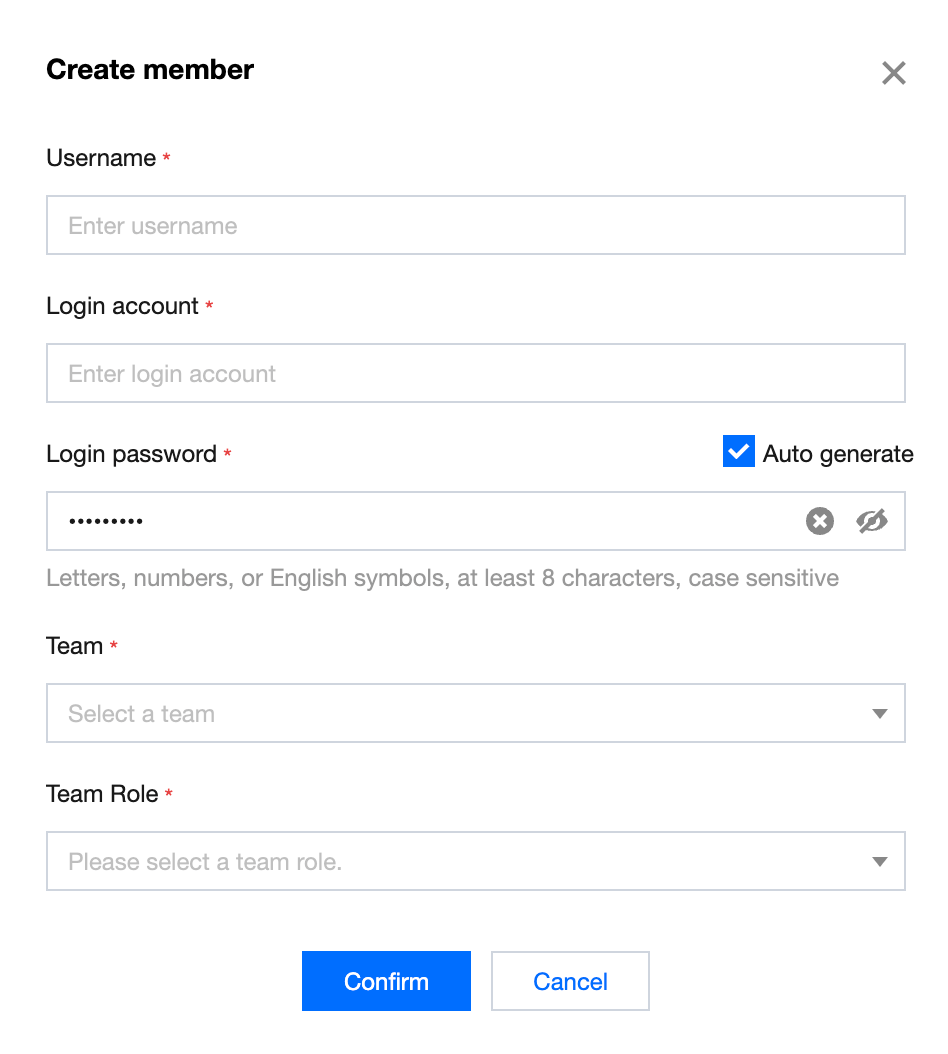
Create New Member
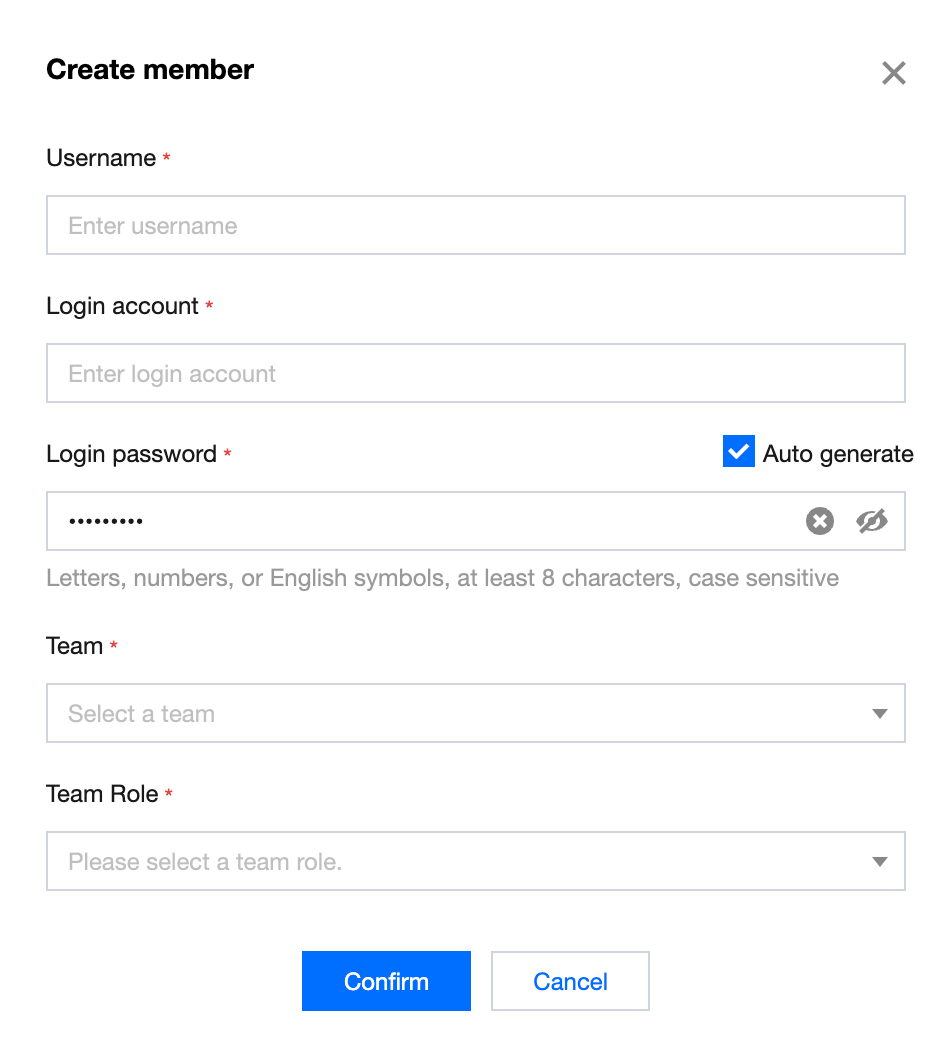
Application administrators and application team member administrators can manage team members. In the Team Management > Member Management page on the left menu of the console, click New Member in the upper left corner to create a new user on the platform and add him to the team. Users created in this way can only be common members of the platform. Administrators still need to fill in the user name, login account, login password, team and team role.
Mini Program Team Member Management
Invite Members
Mini Program team administrators and Mini Program team member managers can click Invite Member in the upper left corner of the Team Management > Member Management page on the left menu of the console.
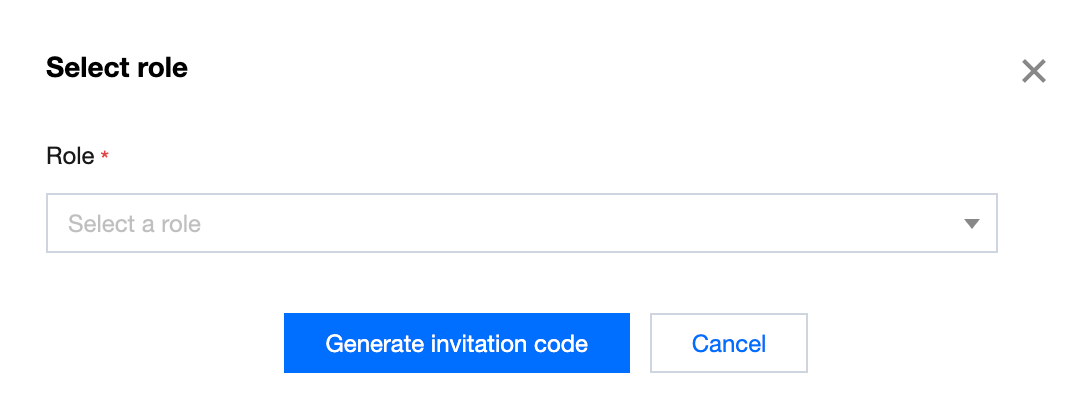
Select the permissions to be assigned to the invitee, click Generate Invite Code, and send it to the invitee.
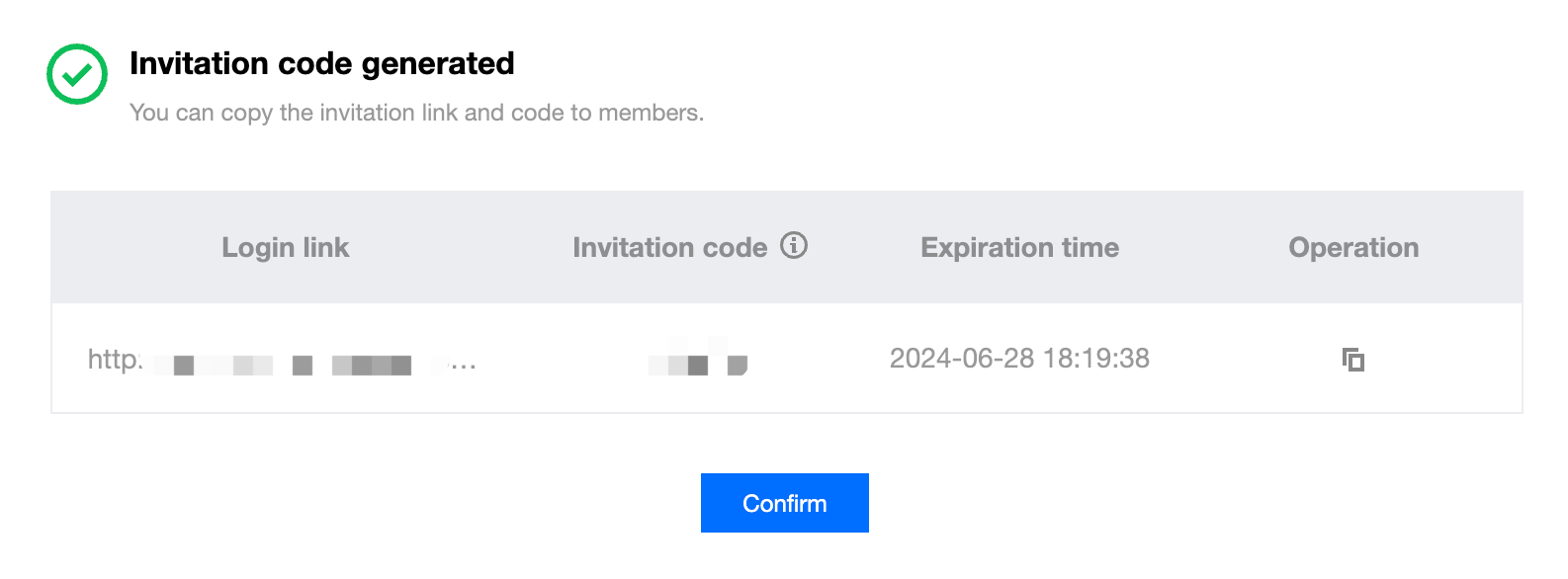
The invitee can use the invitation code to join the team by entering the console through the login link.
TIP
1.Invite codes have usage restrictions and time limits. Each invitation code can only be used once. If it is not used within 24 hours, it will expire.
2.If the user fails to join the team using the invitation code, the invitation code will also expire.
New Member
Mini Program Team Administrators and Mini Program Team Member Administrators can manage team members. In the Team Management > Member Management page on the left menu of the console, click New Member in the upper left corner to create a new user on the platform and add it to the team. Users created in this way can only be ordinary members of the platform. Administrators still need to fill in the user name, login account, login password, team and team role.
Role Management
Luffa Cloud provides preset roles, including administrator, member management role, developer role, operation role and review role to meet actual business management and control needs.
Application Team Roles and Permissions
Function
Application Administrator
Application Team Member Manager
Application Senior Developer
Application Developer
Application Operation Personnel
Reviewer
Team Member Management
✓
✓
-
-
-
-
Application Management
✓
-
✓
-
-
-
Application Access
✓
-
✓
✓
-
-
Mini Program Release Approval
✓
-
-
-
-
✓
Sensitive API Management
✓
-
✓
-
-
-
Sensitive API Call Approval
✓
-
-
-
-
✓
Data Dashboard
✓
-
✓
-
✓
-
Application Team Role Overview:
- Application Administrator: There is only one manager of the application team, who has all the permissions of the application team.
- Application member manager: responsible for application team member management, with the authority to modify team name, member management, and role management.
- Application senior developer: usually the technical leader of the application team, with the authority to manage applications, develop, view operation data, view monitoring data, etc.
- Application developer: the developer of the application, with the authority to develop and view user feedback and feedback logs.
- Application operator: summarize and analyze user feedback issues and mini-program data within the application, and provide data support for product experience improvement.
- Auditor: responsible for the approval process between mini-programs and applications, including mini-program release approval, sensitive API use approval, etc.
Mini Program Team Roles and Permissions
Function
Mini Program Team Administrator
Mini Program Team Member Manager
Mini Program Developer
Mini Program Operation Staff
Mini Program Release Review Staff
Team Member Management
Team Member Management
✓
✓
-
-
-
-
Mini Program Management
✓
-
✓
-
-
-
Mini Program Development Configuration
✓
-
✓
-
-
-
Real-Time Log
✓
-
✓
✓
-
-
Mini Program Development, IDE Use
✓
-
✓
✓
-
-
Mini Program Experience
✓
-
✓
✓
✓
✓
Mini Program Submission Review
✓
-
✓
-
-
✓
Mini Program Release
✓
-
✓
-
-
-
Data Dashboard
✓
-
✓
✓
✓
-
User Feedback
✓
-
✓
✓
✓
-
Mini Program Operation Monitoring
✓
-
✓
✓
-
-
Mini Program Team Role Overview:
- Mini Program Team Administrator: There is only one manager of the Mini Program team, with all permissions of the Mini Program team.
- Mini Program Team Member Manager: Responsible for the management of Mini Program team members, with the authority to modify the team name, member management, and role management.
- Mini Program Senior Developer: Usually the technical leader of the Mini Program team, with permissions such as Mini Program management, development, IDE, viewing operation data, and viewing monitoring data.
- Mini Program Developer: The developer of the Mini Program, with permissions to develop, IDE, view user feedback and feedback logs.
- Mini Program Operation Staff: Summarize and analyze user feedback issues and Mini Program usage data, and provide data support for the experience and function evolution of the Mini Program.
- Mini Program Release Reviewer: Responsible for the approval process between Mini Programs and applications, including experiencing Mini Programs, submitting Mini Programs for release approval, and releasing Mini Programs.